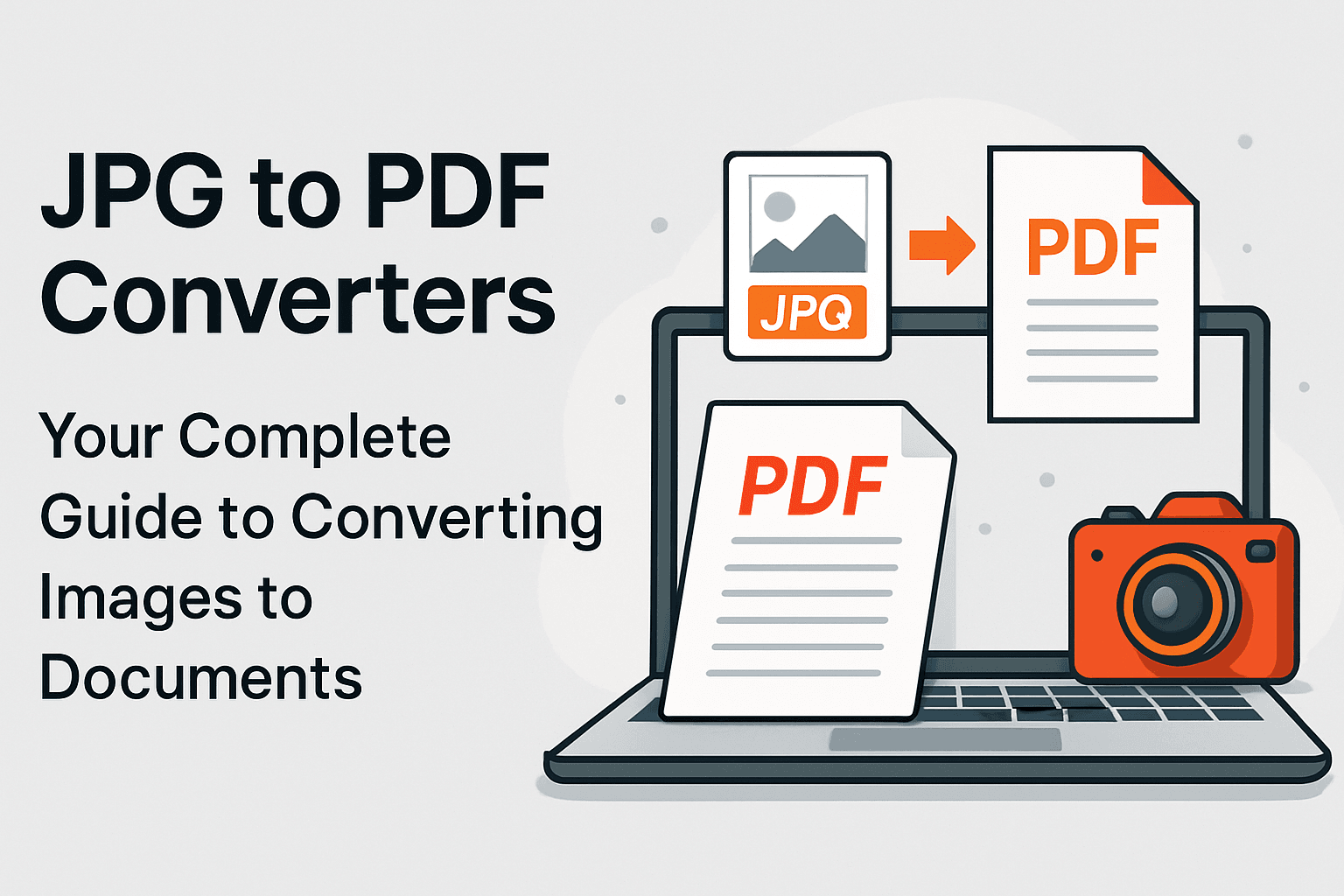
JPG to PDF Converters: Your Complete Guide to Converting Images to Documents
Learn everything about converting JPG images to PDF format. Discover why PDF is the preferred format, how converters work, and best practices for creating professional documents.
Share this article
JPG to PDF Converters: Your Complete Guide to Converting Images to Documents
In our digital world, we capture countless moments and documents as JPG images—photos of receipts, scanned documents, screenshots, and more. But when it comes to sharing, archiving, or printing these images, PDF format often proves to be the better choice. This comprehensive guide will help you understand everything about JPG to PDF converters and why they've become essential tools in our daily workflow.
Why Convert JPG to PDF?
JPG (JPEG) and PDF serve different purposes in the digital ecosystem. Understanding why PDF became the universal standard for document exchange helps explain why converting JPG to PDF is often necessary.
The Universal Document Format
PDF emerged as the de facto standard for document distribution because it solves a fundamental problem: ensuring documents look exactly the same on any device, operating system, or software. Unlike JPG, which is primarily an image format, PDF is a complete document format that can contain images, text, vector graphics, and interactive elements.
Key Advantages of PDF Over JPG
- Universal Compatibility – PDFs work consistently across all platforms and devices, from Windows to Mac, from smartphones to printers
- Professional Appearance – PDFs maintain document structure, making them ideal for formal documents, reports, and presentations
- Better Compression – PDFs can compress multiple images efficiently while maintaining quality
- Text Searchability – When JPGs are converted to PDF with OCR (Optical Character Recognition), text becomes searchable
- Multi-page Support – Combine multiple JPG images into a single PDF document
- Security Features – Add passwords, encryption, and digital signatures to protect your documents
- Print Optimization – PDFs are designed for printing, ensuring consistent output on any printer
Understanding Document Formats: PDF vs. Other Formats
To appreciate why PDF is preferred for documents, it's helpful to understand how it compares to other document formats. While formats like XPS (Open XML Paper Specification) were developed as alternatives to PDF, PDF's early adoption, free viewer software, and continuous evolution made it the dominant choice.
Why PDF Won Over Alternatives
PDF succeeded where other formats struggled because:
- Free Viewing Software – Adobe made Acrobat Reader free in 1994, removing barriers to adoption
- Cross-Platform Support – PDF works on every major operating system
- Industry Adoption – Governments, businesses, and institutions standardized on PDF
- Continuous Innovation – Regular updates added features like digital signatures, interactive forms, and advanced security
This is why converting your JPG images to PDF makes sense—you're using a format that's universally accepted and trusted worldwide.
How JPG to PDF Converters Work
Modern JPG to PDF converters use sophisticated algorithms to transform image files into PDF documents. Here's what happens behind the scenes:
The Conversion Process
- Image Analysis – The converter reads the JPG file, analyzing its dimensions, color depth, and compression
- PDF Structure Creation – A PDF document structure is created with proper headers, metadata, and page definitions
- Image Embedding – The JPG image is embedded into the PDF as a content stream, maintaining quality while optimizing file size
- Page Layout – The converter determines the page size (usually matching the image dimensions or using standard paper sizes)
- Metadata Addition – Document properties like title, author, and creation date are added
- File Generation – The final PDF file is generated and made available for download
Advanced Features in Modern Converters
- Batch Processing – Convert multiple JPG files simultaneously
- Image Optimization – Compress images to reduce PDF file size
- Page Size Options – Choose from standard sizes (A4, Letter) or custom dimensions
- Quality Control – Adjust compression settings to balance quality and file size
- OCR Integration – Extract text from images and make it searchable
Common Use Cases for JPG to PDF Conversion
1. Document Archiving
Convert scanned documents, receipts, and invoices from JPG to PDF for better organization and professional archiving. PDFs are easier to catalog, search, and retrieve.
2. Professional Presentations
Combine multiple images into a single PDF presentation. This is especially useful for portfolios, reports, and business proposals.
3. Email Attachments
PDFs are more professional than JPGs for business communications. They also compress better when multiple images are combined.
4. Printing
PDFs ensure consistent printing results across different printers and paper sizes, making them ideal for professional printing.
5. Legal and Official Documents
Many institutions require PDF format for official submissions. Converting JPG scans to PDF ensures compliance with these requirements.
6. E-book Creation
Create digital books or manuals by converting a series of JPG images into a multi-page PDF document.
Choosing the Right JPG to PDF Converter
With numerous converters available, here's what to look for:
Essential Features
- Free to Use – Many reliable converters offer free conversion without watermarks
- Privacy Protection – Files should be processed securely and deleted after conversion
- No Registration Required – Quick access without creating accounts
- Batch Conversion – Ability to convert multiple files at once
- Quality Preservation – Maintains image quality during conversion
- Fast Processing – Quick conversion times even for large files
Advanced Features
- Custom Page Sizes – Set specific dimensions for your PDF
- Image Compression – Reduce file size while maintaining acceptable quality
- Page Orientation – Choose portrait or landscape orientation
- Margin Settings – Add margins for better printing results
- Multiple Format Support – Convert not just JPG, but also PNG, BMP, and other image formats
Best Practices for JPG to PDF Conversion
1. Image Quality Matters
Start with high-quality JPG images. While PDF conversion won't improve image quality, it will preserve what you have. For scanned documents, use at least 300 DPI resolution.
2. Organize Before Converting
If converting multiple images, organize them in the desired order before conversion. This saves time and ensures your PDF pages are in the correct sequence.
3. Consider File Size
Large JPG files will create large PDFs. Use compression features if file size is a concern, but be mindful of quality loss.
4. Use Appropriate Page Sizes
Match the PDF page size to your image dimensions or use standard sizes (A4, Letter) for better compatibility.
5. Add Metadata
When possible, add titles, descriptions, and keywords to your PDFs. This makes them easier to find and organize later.
6. Verify the Output
Always check the converted PDF to ensure images appear correctly, pages are in the right order, and quality meets your expectations.
Online vs. Desktop Converters
Online Converters
Advantages:
- No software installation required
- Accessible from any device with internet
- Usually free
- Regular updates and improvements
- Cross-platform compatibility
Considerations:
- Requires internet connection
- File size limitations may apply
- Privacy concerns with sensitive documents
Desktop Converters
Advantages:
- Works offline
- No file size limitations
- Complete privacy (files never leave your computer)
- Often faster for large batches
Considerations:
- Requires software installation
- May have licensing costs
- Platform-specific (Windows, Mac, or Linux)
For most users, online converters offer the best balance of convenience, features, and accessibility.
Troubleshooting Common Issues
Large File Sizes
If your PDF is too large:
- Use image compression features
- Reduce image resolution before conversion
- Consider splitting into multiple PDFs
Poor Image Quality
To maintain quality:
- Start with high-resolution source images
- Avoid excessive compression
- Use lossless compression when available
Wrong Page Size
Most converters allow you to:
- Choose standard page sizes (A4, Letter, Legal)
- Set custom dimensions
- Auto-detect from image size
Conversion Errors
If conversion fails:
- Check that your JPG file isn't corrupted
- Ensure the file isn't password-protected
- Try a different converter
- Verify your internet connection (for online tools)
The Future of Document Conversion
As technology evolves, JPG to PDF converters continue to improve. Emerging features include:
- AI-Powered OCR – Better text recognition from images
- Smart Compression – Intelligent algorithms that reduce file size without noticeable quality loss
- Cloud Integration – Direct conversion to cloud storage services
- Mobile Optimization – Better support for converting images captured on smartphones
- Batch Processing – Faster handling of large numbers of files
Conclusion: Making the Right Choice
Converting JPG to PDF is more than just changing file formats—it's about choosing the right tool for document management, sharing, and archiving. PDF's universal acceptance, professional appearance, and versatile features make it the ideal format for most document needs.
Whether you're archiving receipts, creating presentations, or preparing documents for official submission, JPG to PDF converters provide a simple, efficient solution. By understanding how these tools work and following best practices, you can create professional PDF documents that meet your needs and exceed expectations.
Remember, the best converter is one that balances ease of use, quality output, and privacy protection. With the right tool and approach, converting JPG to PDF becomes a seamless part of your digital workflow.
Try These Tools
Related Articles
How to Merge PDF Files Online: A Complete Guide
Learn how to combine multiple PDF documents into a single file using free online tools. Step-by-step guide with tips and best practices.
Read more
How to Compress PDF Files and Reduce File Size
Discover effective methods to compress PDF files and reduce their size without losing quality. Learn about different compression levels and when to use them.
Read more
PDF vs Word: When to Use Each Format
Understand the differences between PDF and Word formats, and learn when to use each for maximum efficiency in your document workflow.
Read moreComments (0)
No comments yet. Be the first to comment!
Note: Some comments are pre-loaded examples. Your comments are stored locally in your browser and won't be visible to other users.