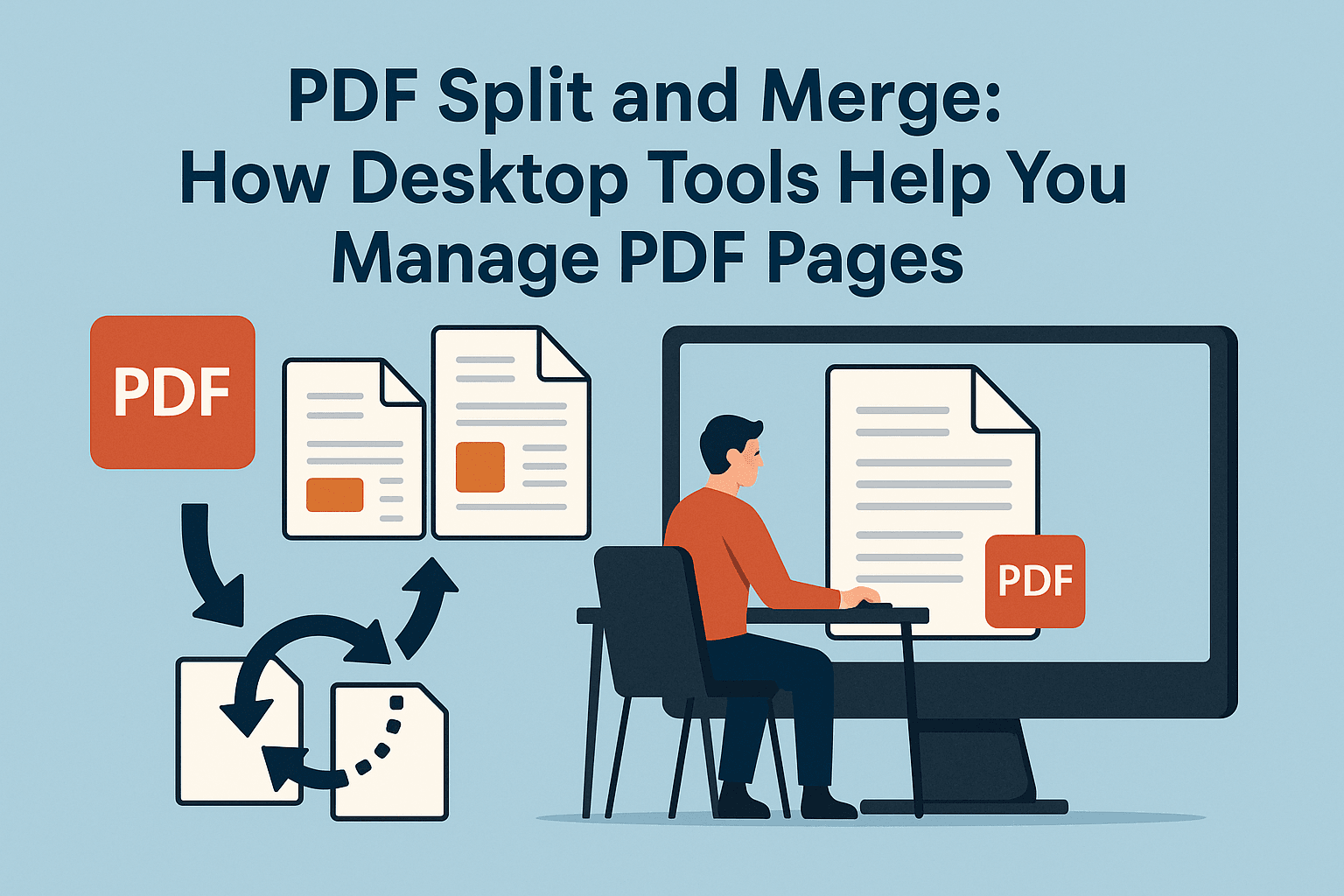
PDF Split and Merge: How Desktop Tools Help You Manage PDF Pages
Understand how desktop PDF split and merge tools work, when to use them instead of online services, and what features to look for.
Share this article
PDF Split and Merge: How Desktop Tools Help You Manage PDF Pages
Online PDF tools are great when you have a quick task, but sometimes you need more control over your documents, or you are working with large or sensitive files. In those cases, a dedicated desktop PDF split and merge tool can be a powerful option.
In this article, we’ll explain what these tools do, how they work, and how they compare to online PDF services.
What Is a PDF Split and Merge Tool?
A PDF split and merge tool is a small application that runs on your computer and lets you:
- Merge several PDF files into one document
- Split a big PDF into smaller parts
- Extract or remove pages you don’t need
- Rotate pages that are upside down or sideways
- Sometimes reorder, mix, or duplicate pages in advanced ways
Programs like PDFsam Basic are examples of this type of software. They are installed on Windows, macOS, or Linux and work completely offline, which is helpful when you want extra privacy or are dealing with large files that would be slow to upload.
Common Tasks You Can Do
Here are some everyday things you can do with a desktop split and merge tool:
- Combine multiple PDFs – For example, put all chapters of a report into one clean file.
- Split by page range – Save only pages 10–20 from a long e‑book or report.
- Split every n pages – Create separate files for each section or chapter.
- Split by bookmarks or size – Some tools let you break a file by its internal bookmarks or approximate file size.
- Rotate pages – Fix scanned pages that appear sideways.
- Extract key pages – Pull out receipts, forms, or signature pages you need to send separately.
These features make desktop tools especially useful for people who regularly work with long documents, scanned files, or batches of PDFs.
Desktop Tools vs. Online PDF Services
Both desktop software and online PDF tools can split and merge files, but they shine in different situations:
Use a desktop tool when:
- You work with very large PDFs that would be slow to upload.
- Your documents contain private or sensitive information.
- You want advanced options such as splitting by bookmarks, size, or complex page patterns.
- You often manage PDFs while offline.
Use an online tool like PDFMagical when:
- You need a quick, one‑time task such as merging a few documents.
- You are on a shared or public computer and don’t want to install software.
- You want a simple interface that works in any browser, on desktop or mobile.
Many users actually combine both: a desktop tool for heavy, offline work and a fast online service for simple tasks.
What Features Should You Look For?
When choosing a desktop PDF split and merge application, pay attention to:
- Ease of use – Clear buttons and previews so you always know which pages you’re editing.
- Cross‑platform support – Works on Windows, macOS, and Linux if you use multiple devices.
- Batch processing – Ability to process several files in one go.
- License and cost – Some tools are free and open‑source, while others are paid or freemium.
- Performance and stability – Handles large documents without crashing.
Choosing the right tool can save you a lot of time if you manage PDFs every day.
How PDFMagical Fits In
Even if you use a desktop split and merge tool, an online service like PDFMagical is still very handy. With PDFMagical, you can:
- Split PDFs into separate files
- Merge multiple PDFs into one
- Organize, compress, convert, and protect your documents
Because it runs in the browser, you don’t need to install anything—perfect for quick edits, working on someone else’s computer, or using a mobile device.
Final Thoughts
PDF split and merge tools give you fine‑grained control over your documents, especially when you work offline or with large, complex files. Desktop software is ideal for power users and heavy workloads, while online tools like PDFMagical are perfect for fast, simple tasks.
By understanding both options, you can choose the workflow that keeps your PDF files neat, organized, and easy to manage.
Try These Tools
Related Articles
How to Merge PDF Files Online: A Complete Guide
Learn how to combine multiple PDF documents into a single file using free online tools. Step-by-step guide with tips and best practices.
Read more
How to Compress PDF Files and Reduce File Size
Discover effective methods to compress PDF files and reduce their size without losing quality. Learn about different compression levels and when to use them.
Read more
How to Unlock PDF Files Safely: Understanding Locked Documents
Learn what it means when a PDF is locked, why passwords and permissions exist, and how to unlock PDFs safely without risking your data.
Read moreComments (0)
No comments yet. Be the first to comment!
Note: Some comments are pre-loaded examples. Your comments are stored locally in your browser and won't be visible to other users.