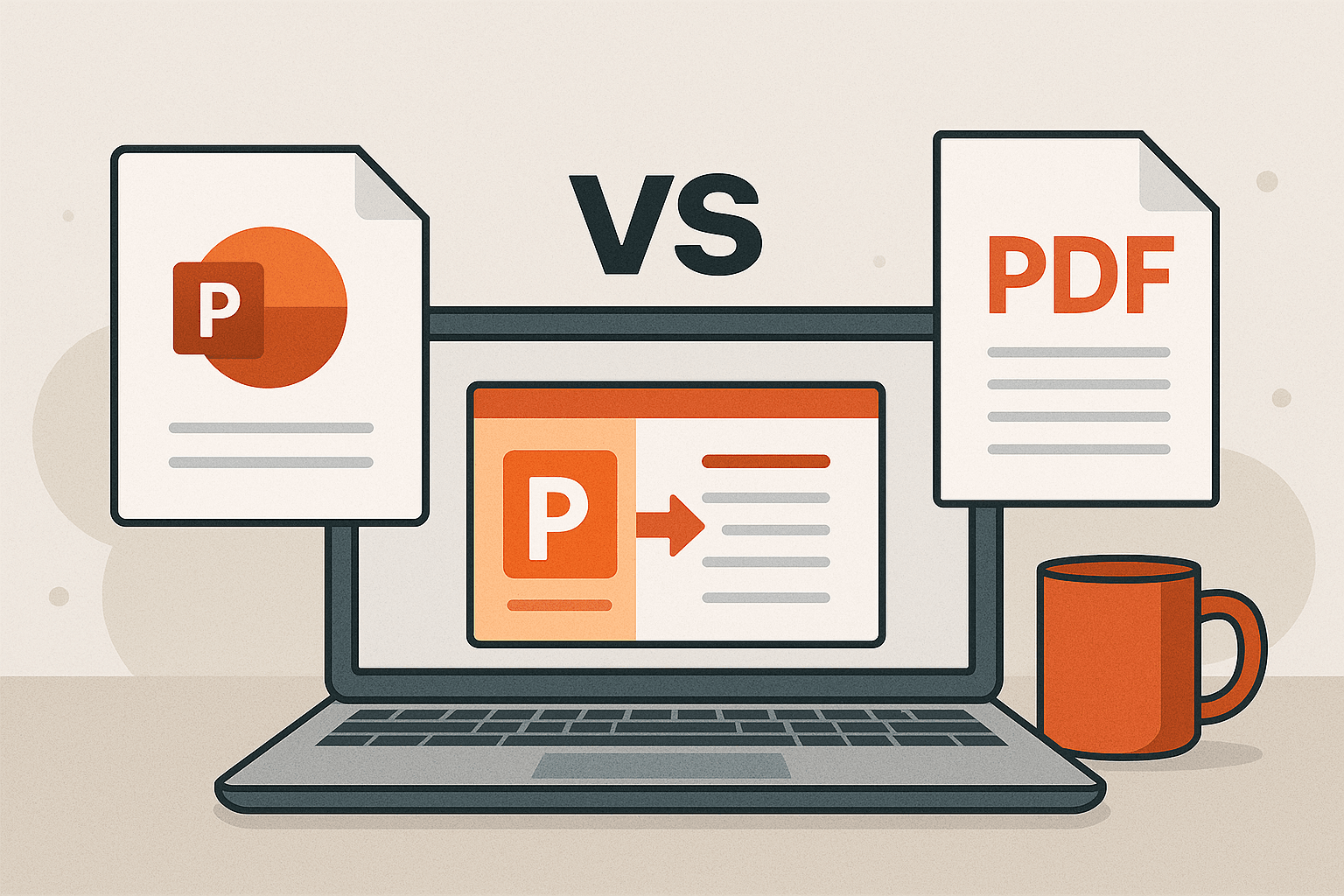
PowerPoint vs PDF: A Complete Comparison
Compare PowerPoint and PDF formats. Learn when to use each format, their key differences, advantages, and which one suits your needs.
Share this article
PowerPoint vs PDF: A Complete Comparison
When creating and sharing presentations, two formats stand out: Microsoft PowerPoint (PPT/PPTX) and PDF. Both serve different purposes and have unique strengths. This guide helps you understand when to use each format.
PowerPoint: The Dynamic Presentation Tool
PowerPoint is Microsoft's presentation software, perfect for creating interactive slideshows with animations, videos, and multimedia content.
Key Features:
- Animations and transitions
- Easy editing and collaboration
- Multimedia integration (videos, audio)
- Professional templates
- Real-time co-authoring
File Formats: .ppt (legacy), .pptx (modern), .pptm (macro-enabled)
PDF: The Universal Document Format
PDF (Portable Document Format) preserves document formatting across all devices and platforms. It's the standard for document distribution and archiving.
Key Features:
- Universal compatibility
- Format preservation
- Security features (passwords, encryption)
- Smaller file sizes
- Print-ready format
Key Differences
Editability
- PowerPoint: Fully editable, easy to modify
- PDF: Not easily editable, better for final documents
Compatibility
- PowerPoint: Requires PowerPoint or compatible software
- PDF: Works on any device with a PDF reader (even browsers)
File Size
- PowerPoint: Can be large with embedded media
- PDF: Generally more compact and optimized
Security
- PowerPoint: Basic password protection
- PDF: Advanced security (encryption, digital signatures, permission controls)
Interactivity
- PowerPoint: Rich animations, videos, interactive elements
- PDF: Limited interactivity (hyperlinks, basic forms)
Sharing
- PowerPoint: Best for collaboration and editing
- PDF: Best for distribution and archiving
When to Use PowerPoint
Use PowerPoint when you need:
- Live presentations with animations
- Interactive training materials
- Collaborative editing
- Frequent updates and revisions
- Multimedia-rich content
When to Use PDF
Use PDF when you need:
- Final document distribution
- Universal accessibility (no special software needed)
- Official submissions
- Document archiving
- Email attachments
- Security and protection
Best Practices
PowerPoint:
- Compress images to reduce file size
- Use standard fonts for compatibility
- Save both .pptx and PDF versions
- Remove sensitive metadata before sharing
PDF:
- Compress files for easier sharing
- Add password protection for sensitive documents
- Remove metadata before distribution
- Verify formatting after conversion
The Hybrid Approach
Many professionals use both formats:
- Create in PowerPoint – For editing and collaboration
- Convert to PDF – For distribution and archiving
- Keep both – PowerPoint for future edits, PDF for sharing
This gives you flexibility for creation and reliability for distribution.
Conversion Tips
When converting PowerPoint to PDF:
- Animations and transitions are lost
- Interactive elements may not work
- File size usually decreases
- Formatting is mostly preserved
- Hyperlinks are usually maintained
Conclusion
Choose PowerPoint for creating dynamic, interactive presentations that need editing and collaboration.
Choose PDF for distributing final documents that need consistent formatting, universal access, and security.
Use both by creating in PowerPoint and converting to PDF for distribution. This approach gives you the best of both worlds.
Try These Tools
Related Articles
How to Merge PDF Files Online: A Complete Guide
Learn how to combine multiple PDF documents into a single file using free online tools. Step-by-step guide with tips and best practices.
Read more
How to Compress PDF Files and Reduce File Size
Discover effective methods to compress PDF files and reduce their size without losing quality. Learn about different compression levels and when to use them.
Read more
PDF vs Word: When to Use Each Format
Understand the differences between PDF and Word formats, and learn when to use each for maximum efficiency in your document workflow.
Read moreComments (0)
No comments yet. Be the first to comment!
Note: Some comments are pre-loaded examples. Your comments are stored locally in your browser and won't be visible to other users.