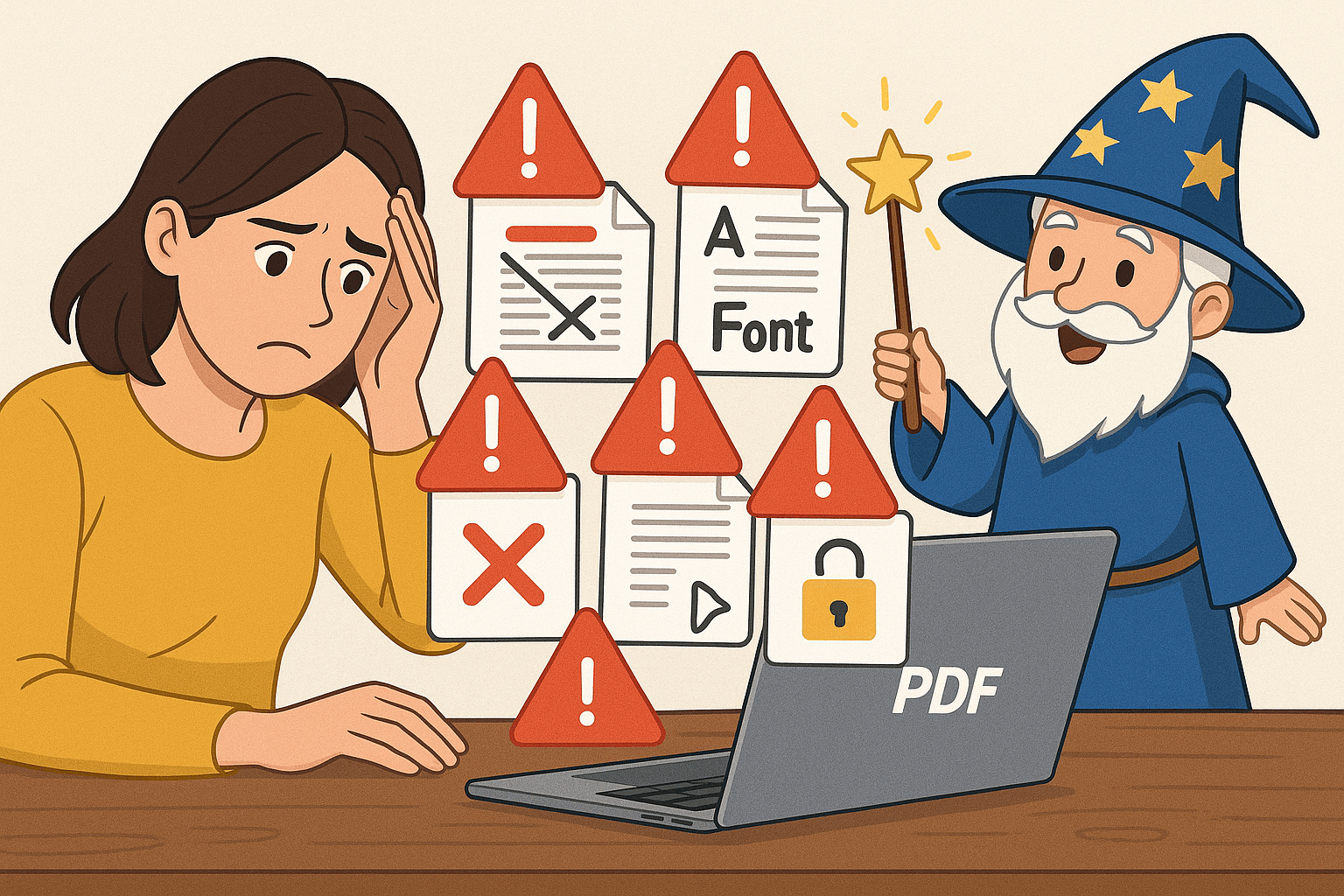
Top PDF Mistakes People Make (And How PDFMagical Fixes Them Instantly)
Learn about the most common PDF mistakes people make and discover how PDFMagical can fix them quickly and easily. Real solutions for real problems.
Share this article
Top PDF Mistakes People Make (And How PDFMagical Fixes Them Instantly)
PDFs are used everywhere – in business, education, and personal projects. However, many people struggle with common PDF problems that waste time, cause frustration, and create unnecessary complications. The good news is that most of these issues can be fixed quickly with the right tools.
This guide covers the most common PDF mistakes people make and shows how PDFMagical can resolve them instantly. Understanding these mistakes helps you work more efficiently and avoid the frustration that comes with PDF problems.
Mistake #1: Sending Huge Files That Won't Email
This is one of the most common PDF mistakes. Users try to email a PDF and encounter the "file too large" error. Many email systems have 10-25MB size limits, but PDFs can easily exceed this, especially when they contain high-resolution images or scanned content.
Why it happens: Documents scanned at high resolution (300 DPI or higher) create large PDF files. Similarly, PDFs with embedded high-resolution images, multiple pages, or uncompressed content can be 10-20MB or larger. Many people don't realize their PDF is too large until the email fails to send.
The PDFMagical fix: Use the compress tool to reduce file size. Upload the PDF, compress it, and download the optimized version. Most PDFs can be reduced by 70-90% in size without noticeable quality loss. The process takes about 30 seconds, and the compressed file will send successfully via email.
Impact: Compressing a 20MB file down to 2MB makes it email-friendly and easier to download, especially on mobile devices.
Mistake #2: Creating Multiple Versions Instead of Editing
Many users create multiple versions of the same document – "document.pdf", "document_v2.pdf", "document_final.pdf" – leading to confusion about which version is current. This creates clutter and makes it difficult to track the latest version.
Why it happens: There's a common misconception that PDFs cannot be edited. Users create new files instead of modifying the original, or they're concerned about damaging the original file. This results in multiple versions that waste storage space and create confusion.
The PDFMagical fix: Use the edit tool to modify PDFs directly. Add text, remove pages, rotate pages, add signatures, and make other changes without creating duplicate files. Edit the PDF, save it, and maintain a single up-to-date version.
Impact: Editing directly saves time, reduces storage usage, and ensures there's always one current version of the document.
Mistake #3: Sending Word Files When They Need PDFs
Sending Word documents instead of PDFs often results in formatting issues. When recipients open Word files on different computers, fonts may be missing, layouts can break, and tables may not align properly. This creates an unprofessional appearance and requires additional communication to resolve.
Why it happens: Many users don't realize that Word files display differently depending on installed fonts and software versions. They assume that if a document looks correct on their screen, it will appear the same for everyone.
The PDFMagical fix: Convert Word documents to PDF before sending. Upload the Word file, convert it to PDF, and send the PDF version. PDFs maintain consistent formatting across all devices and software, ensuring the document looks exactly as intended for every recipient.
Impact: Converting to PDF eliminates formatting issues, reduces follow-up requests, and presents a more professional appearance.
Mistake #4: Trying to Edit PDFs in Word (And Failing)
Attempting to edit PDFs by opening them directly in Word typically produces poor results. Text may appear in wrong locations, images can be missing, and formatting is often destroyed. Users then spend significant time trying to fix the resulting mess.
Why it happens: While Word can technically open PDFs, it's not designed for this purpose. The automatic conversion process is unreliable and frequently loses formatting, layout, and embedded elements.
The PDFMagical fix: Use PDF to Word conversion tools designed specifically for this task. These tools properly extract text, preserve layouts, and create editable Word documents. Alternatively, use PDFMagical's edit tool to modify PDFs directly without conversion.
Impact: Proper conversion tools save hours of manual formatting work and produce usable, editable documents.
Mistake #5: Printing PDFs That Are Sideways
PDFs with rotated pages cause problems when printing or viewing. Pages may print sideways, requiring manual rotation in printer settings for each affected page. On screen, users must turn their heads or rotate their devices to read the content.
Why it happens: Scanned documents often end up rotated if pages were placed incorrectly in the scanner. Documents may also be created with pages in the wrong orientation, and users don't notice until they attempt to use or print the file.
The PDFMagical fix: Use the rotate tool to fix page orientation. Upload the PDF, preview all pages, rotate the ones that need correction, and download the properly oriented document. The process takes about a minute and fixes all orientation issues at once.
Impact: Properly oriented documents print correctly and are easier to read, saving time and avoiding printing errors.
Mistake #6: Sending Multiple Files Instead of One Merged File
Sending multiple related PDFs as separate attachments creates confusion. Recipients must open each file individually, determine the correct order, and piece together the information mentally. This makes document review more difficult and time-consuming.
Why it happens: Many users don't realize that PDFs can be easily combined, or they assume the process is complicated. As a result, they attach multiple files separately instead of merging them.
The PDFMagical fix: Use the merge tool to combine related PDFs into one document. Upload all files, arrange them in the desired order, merge them, and send a single organized file. Recipients receive everything in one cohesive document, which appears more professional.
Impact: Merged documents are easier to review, appear more organized, and reduce the chance of missing important information.
Mistake #7: Forgetting to Protect Sensitive Documents
Sending unprotected PDFs containing contracts, financial information, or personal data creates security risks. Anyone who receives or accesses these files can open, edit, or print them without restrictions.
Why it happens: Users often don't consider security implications or aren't aware that PDFs can be password-protected. Files are sent without considering who else might access them through forwarding or unauthorized access.
The PDFMagical fix: Use the protect tool to secure sensitive documents. Add password protection, set permissions to prevent printing or editing, and ensure only authorized users can access the content. The process takes about 30 seconds and significantly improves document security.
Impact: Password protection prevents unauthorized access and helps protect sensitive information from being shared or modified inappropriately.
Mistake #8: Not Being Able to Open Password-Protected PDFs
Users sometimes receive password-protected PDFs without the password, or they password-protect their own files and later forget the password. This locks them out of their own documents and creates access problems.
Why it happens: Passwords are forgotten over time, or users password-protect files without properly documenting or sharing the password. Passwords may also get lost in email threads or communication channels.
The PDFMagical fix: If you know the password, use the unlock tool to remove protection. Enter the password, unlock the PDF, and save an unprotected version. Note that you must know the password – the tool cannot recover forgotten passwords.
Impact: Unlocking PDFs with known passwords restores access to documents and allows for easier sharing and editing when needed.
Mistake #9: Trying to Sign PDFs by Printing and Scanning
Many users print PDFs, sign them with a pen, scan them back into digital format, and send the scanned version. This process is time-consuming, reduces document quality, and is completely unnecessary with modern tools.
Why it happens: Users aren't aware that PDFs can be signed digitally. They assume the traditional print-sign-scan process is the only option for adding signatures to documents.
The PDFMagical fix: Use the sign tool to add digital signatures. Upload the PDF, add your signature digitally (draw it, type it, or upload an image), place it in the correct location, and download the signed document. The process is professional, fast, and requires no printing or scanning.
Impact: Digital signatures save significant time, maintain document quality, and eliminate the need for printers and scanners.
Mistake #10: Not Organizing Pages Before Sending
Sending PDFs with pages in the wrong order or including unnecessary pages creates confusion for recipients. They must manually determine the correct sequence or identify which pages are relevant, wasting time and creating frustration.
Why it happens: Users don't realize that PDF pages can be reorganized. There's a misconception that once a PDF is created, the page order and content are permanent and cannot be changed.
The PDFMagical fix: Use the organize tool to arrange pages properly. Reorder pages, delete unwanted pages, and create a clean, organized document before sending. The process takes just a few minutes and results in a professional, ready-to-read document.
Impact: Well-organized documents are easier to review, appear more professional, and save recipients significant time.
The Common Pattern
Most of these mistakes occur because users don't realize how easy modern PDF tools make document management. Many people continue using outdated methods (print and scan, creating multiple versions, sending huge files) because they're unaware of better alternatives.
Modern PDF tools are available, free to use, and work directly in web browsers. There's no need to continue making these common mistakes when solutions are readily accessible.
How PDFMagical Addresses These Problems
PDFMagical provides solutions for all these common mistakes in one platform:
- Compress – Reduces file sizes for email and sharing
- Edit – Modifies PDFs directly without creating multiple versions
- Convert – Handles format compatibility issues
- Rotate – Fixes page orientation problems
- Merge – Combines multiple files into one document
- Protect/Unlock – Manages document security
- Sign – Adds digital signatures without printing
- Organize – Reorders and manages pages
All tools are free, work in any browser, and require no software installation. Most PDF problems can be resolved in under a minute.
Time Savings
These common mistakes waste significant time:
- Attempting to email large files, getting rejected, compressing, and retrying: 10-15 minutes
- Creating multiple versions of documents: 20-30 minutes
- Printing, signing, and scanning documents: 5-10 minutes
- Editing PDFs in Word and fixing formatting issues: 30-60 minutes
- Manually organizing pages or requesting help: 15-20 minutes
This can add up to hours of wasted time per week. Using appropriate PDF tools eliminates most of this wasted effort.
Recommendations
To avoid these common mistakes:
- Identify the issue – Recognize which of these 10 mistakes you're making
- Use the appropriate tool – PDFMagical offers tools for nearly every PDF problem
- Fix quickly – Most issues can be resolved in under a minute
- Save time – Stop wasting hours on problems with instant solutions
By understanding these common mistakes and using the right tools, you can work more efficiently, maintain professional document quality, and avoid the frustration that comes with PDF problems. PDFMagical provides all the tools needed to handle PDF tasks effectively, ensuring documents are properly formatted, organized, and ready for use.
Try These Tools
Related Articles
How to Merge PDF Files Online: A Complete Guide
Learn how to combine multiple PDF documents into a single file using free online tools. Step-by-step guide with tips and best practices.
Read more
How to Compress PDF Files and Reduce File Size
Discover effective methods to compress PDF files and reduce their size without losing quality. Learn about different compression levels and when to use them.
Read more
PDF vs Word: When to Use Each Format
Understand the differences between PDF and Word formats, and learn when to use each for maximum efficiency in your document workflow.
Read moreComments (0)
No comments yet. Be the first to comment!
Note: Some comments are pre-loaded examples. Your comments are stored locally in your browser and won't be visible to other users.