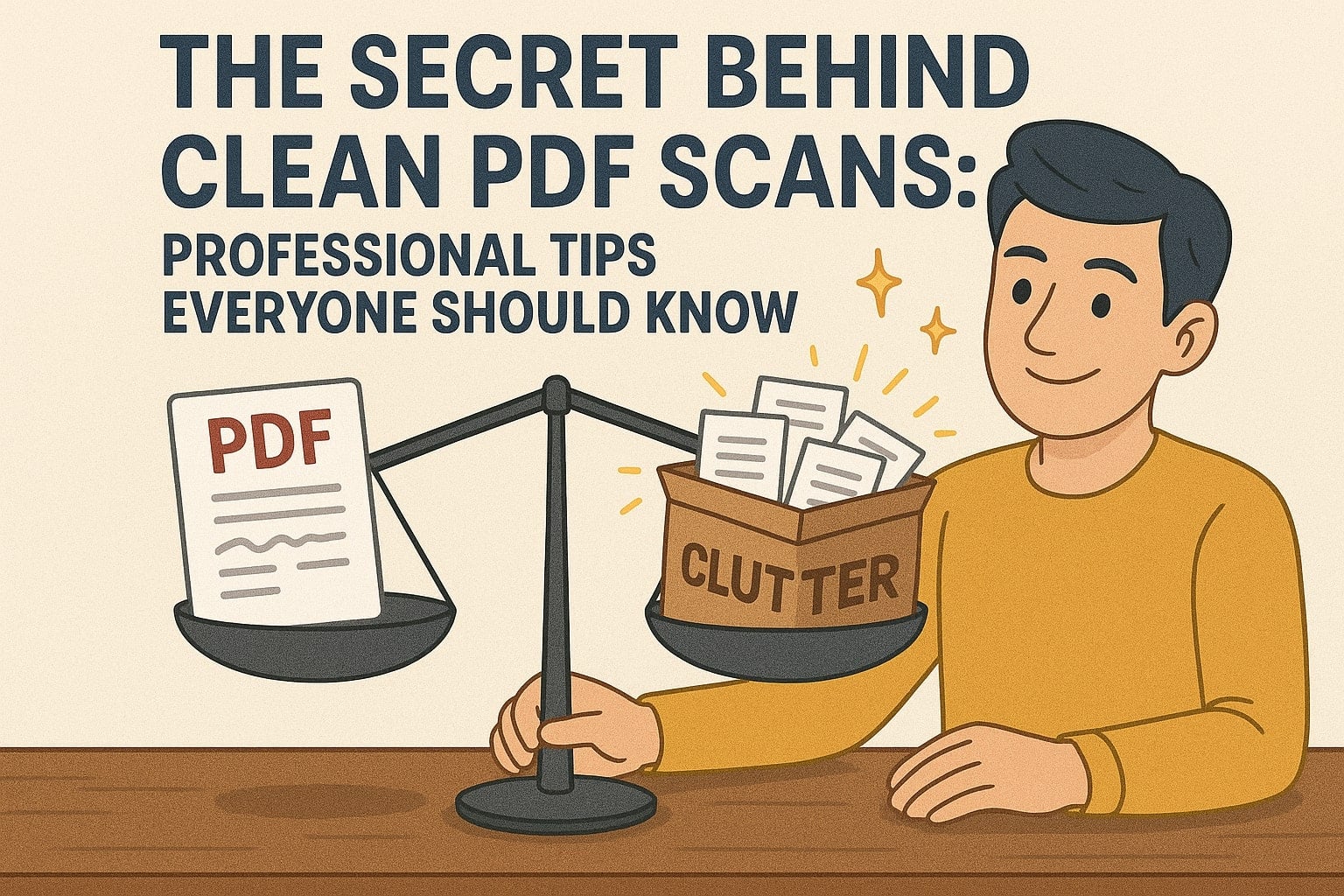
The Secret Behind Clean PDF Scans: Professional Tips Everyone Should Know
Learn professional techniques for creating clean, high-quality PDF scans. Discover scanning best practices, resolution settings, and post-processing tips for perfect results.
Share this article
The Secret Behind Clean PDF Scans: Professional Tips Everyone Should Know
Creating clean, professional PDF scans isn't just about having the right equipment – it's about understanding the process and applying the right techniques. Whether you're scanning documents for business, personal records, or archival purposes, following professional scanning practices ensures you get high-quality results every time.
This guide covers the essential tips and techniques that professionals use to create clean, readable, and well-organized PDF scans.
Understanding Scan Quality
Before diving into techniques, it's important to understand what makes a scan "clean" and professional:
Key Quality Factors:
- Resolution – Measured in DPI (dots per inch), determines image sharpness
- Contrast – The difference between text and background
- Brightness – Overall lightness or darkness of the scan
- Orientation – Pages are straight and properly aligned
- File Size – Optimized for purpose without unnecessary bloat
Professional scans balance these factors to create documents that are clear, readable, and appropriately sized for their intended use.
Resolution Settings: The Foundation of Quality
Resolution is the most critical setting for scan quality. Choosing the right DPI depends on your document type and intended use.
Text Documents
For standard text documents (letters, contracts, reports):
- 300 DPI – Recommended for most text documents
- Provides clear, readable text
- File size remains manageable
- Suitable for printing and archiving
Documents with Fine Print
For documents with small text or detailed information:
- 400-600 DPI – Ensures small text remains legible
- Better for legal documents, technical manuals
- Larger file sizes but necessary for clarity
Photos and Images
For scanning photographs or documents with images:
- 300-600 DPI – Depends on original photo quality
- Higher DPI preserves photo detail
- Consider file size vs. quality needs
Web and Email Use
For documents that will be viewed on screen or emailed:
- 150-200 DPI – Sufficient for screen viewing
- Significantly smaller file sizes
- Faster to upload and download
Professional Tip: Scan at higher resolution than needed, then compress later if file size is a concern. It's easier to reduce quality than to improve a low-resolution scan.
Pre-Scanning Preparation
Proper preparation before scanning makes a significant difference in the final result.
Clean the Document
- Remove staples, paper clips, or bindings
- Smooth out wrinkles and creases
- Clean the scanner glass with a microfiber cloth
- Ensure documents are flat and not curled
Check Document Condition
- Repair torn pages if possible
- Remove tape or sticky notes
- Ensure pages are complete and in order
- Check for shadows or marks that might affect scanning
Organize Before Scanning
- Arrange pages in the correct order
- Group related documents together
- Remove pages that don't need to be scanned
- Plan the scanning sequence
Scanner Settings for Optimal Results
Understanding and adjusting scanner settings is crucial for professional results.
Color Mode Selection
Black and White (B&W):
- Best for text-only documents
- Smallest file sizes
- Fastest scanning
- Use for letters, contracts, forms
Grayscale:
- Good for documents with photos or graphics
- Preserves detail in images
- Moderate file sizes
- Use for reports with charts or photos
Color:
- Necessary for color documents or photos
- Largest file sizes
- Use only when color is important
- Consider if color is truly needed
Brightness and Contrast
Brightness:
- Too bright: Text may appear faded
- Too dark: Text may be hard to read
- Adjust based on paper color and ink darkness
- Test with a sample page first
Contrast:
- Higher contrast: Sharper text, clearer separation
- Lower contrast: Softer appearance
- Adjust to match document characteristics
Auto vs. Manual Settings
Auto Settings:
- Convenient for quick scanning
- Scanner adjusts automatically
- Good for standard documents
- May not be optimal for unusual documents
Manual Settings:
- More control over results
- Better for special documents
- Requires understanding of settings
- Recommended for professional work
Scanning Techniques
The way you scan affects the final quality.
Proper Alignment
- Place documents straight on the scanner bed
- Align with scanner guides
- Check edges are parallel to scanner edges
- Avoid diagonal placement
Avoiding Shadows and Glare
- Close scanner lid completely
- Ensure documents lie flat
- Remove any objects that might cast shadows
- Check for reflective surfaces that cause glare
Handling Multiple Pages
- Scan pages in order
- Use document feeder for multiple pages
- Check each page is captured correctly
- Verify no pages are skipped or duplicated
Post-Scanning Optimization
After scanning, optimization ensures the best final result.
Compression for File Size
Large scanned PDFs can be difficult to email or share. Compression tools can reduce file size while maintaining quality:
- Text documents: Can often be compressed by 70-90%
- Documents with images: Compression varies based on image content
- Test compression: Always verify quality after compressing
Professional Tip: Use PDFMagical's compress tool to optimize scanned PDFs. It reduces file size while maintaining readability, making documents easier to share and store.
Rotation and Orientation
Scanned pages often need rotation correction:
- Check all pages are properly oriented
- Rotate pages that are sideways or upside down
- Ensure consistent orientation throughout document
- Use rotation tools to fix orientation issues
Page Organization
Organize scanned pages for better usability:
- Remove blank pages
- Reorder pages if needed
- Remove duplicate scans
- Ensure logical page sequence
Common Scanning Mistakes to Avoid
Understanding common mistakes helps prevent problems.
Mistake 1: Scanning at Too Low Resolution
Scanning at 72-100 DPI may seem sufficient, but text often becomes pixelated and hard to read, especially when zoomed.
Solution: Use at least 300 DPI for text documents.
Mistake 2: Not Cleaning the Scanner
Dust, fingerprints, and smudges on the scanner glass appear in every scan, creating unprofessional results.
Solution: Clean the scanner glass before each scanning session.
Mistake 3: Scanning in Wrong Color Mode
Scanning text documents in color creates unnecessarily large files without improving quality.
Solution: Use black and white for text-only documents, color only when needed.
Mistake 4: Not Checking Orientation
Pages scanned sideways or upside down require correction later, wasting time.
Solution: Check orientation before scanning, or use rotation tools to fix afterward.
Mistake 5: Skipping Optimization
Large, unoptimized scanned PDFs are difficult to share and take up excessive storage space.
Solution: Compress scanned PDFs to appropriate sizes for their intended use.
Mobile Scanning Tips
Modern smartphones can create excellent scans with the right techniques.
Lighting Conditions
- Use natural light when possible
- Avoid harsh shadows
- Ensure even lighting across the document
- Avoid glare from overhead lights
Camera Settings
- Use the document scanning mode in camera apps
- Ensure the document fills the frame
- Hold the phone steady and parallel to the document
- Use auto-focus to ensure sharpness
Post-Processing Mobile Scans
- Crop to document edges
- Adjust brightness and contrast if needed
- Convert to PDF format
- Compress if file size is large
Professional Workflow
Following a consistent workflow ensures consistent results.
Step 1: Preparation
- Organize documents
- Clean scanner
- Check document condition
- Plan scanning sequence
Step 2: Scanning
- Set appropriate resolution
- Choose correct color mode
- Adjust brightness/contrast
- Scan in proper order
Step 3: Review
- Check all pages scanned correctly
- Verify orientation
- Ensure no pages missing
- Confirm quality is acceptable
Step 4: Optimization
- Compress if needed
- Rotate pages if necessary
- Organize page order
- Remove blank or duplicate pages
Step 5: Final Check
- Review entire document
- Verify file size is appropriate
- Test opening and viewing
- Ensure ready for intended use
File Naming and Organization
Proper file naming and organization make scanned documents easy to find and manage.
Naming Conventions
- Use descriptive, consistent names
- Include dates when relevant
- Use clear abbreviations
- Avoid special characters
Examples:
- "Invoice_2025_01_15.pdf"
- "Contract_ClientName_2025.pdf"
- "Receipt_StoreName_Date.pdf"
Folder Organization
- Create logical folder structures
- Group related documents
- Use consistent organization methods
- Archive old documents appropriately
Quality Control Checklist
Before considering a scan complete, verify:
- [ ] All pages are present and in order
- [ ] Text is clear and readable
- [ ] Pages are properly oriented
- [ ] File size is appropriate
- [ ] No shadows or marks affect readability
- [ ] Color mode is correct for document type
- [ ] Document is properly named
- [ ] Quality meets intended use requirements
Advanced Tips for Professional Results
OCR (Optical Character Recognition)
For scanned documents that need to be searchable or editable:
- Use OCR tools to extract text
- Makes scanned PDFs searchable
- Enables text selection and copying
- Useful for large document archives
Batch Scanning
When scanning multiple documents:
- Use consistent settings for all documents
- Scan in logical groups
- Name files consistently
- Organize as you scan
Archival Scanning
For long-term document preservation:
- Use higher resolution (400-600 DPI)
- Choose appropriate file formats
- Ensure proper storage and backup
- Document scanning settings used
Using PDF Tools for Post-Processing
Modern PDF tools can enhance scanned documents:
Compression:
- Reduce file sizes while maintaining quality
- Make documents easier to share
- Optimize for specific uses
Rotation:
- Fix orientation issues quickly
- Rotate individual pages or entire documents
- Ensure consistent page orientation
Organization:
- Reorder pages as needed
- Remove unwanted pages
- Combine multiple scans into one document
Merging:
- Combine related scanned documents
- Create organized document collections
- Reduce number of files to manage
Conclusion
Creating clean, professional PDF scans requires attention to detail and understanding of the scanning process. By following these professional tips – using appropriate resolution settings, preparing documents properly, optimizing scanner settings, and post-processing effectively – anyone can produce high-quality scanned PDFs.
Key Takeaways:
- Use 300 DPI minimum for text documents
- Choose appropriate color mode for document type
- Clean and prepare documents before scanning
- Optimize scanned PDFs for file size and quality
- Use PDF tools to enhance and organize scans
Remember, the goal is to create scans that are clear, readable, appropriately sized, and well-organized. With the right techniques and tools, professional-quality scans are achievable for everyone.
Try These Tools
Related Articles
How to Merge PDF Files Online: A Complete Guide
Learn how to combine multiple PDF documents into a single file using free online tools. Step-by-step guide with tips and best practices.
Read more
How to Compress PDF Files and Reduce File Size
Discover effective methods to compress PDF files and reduce their size without losing quality. Learn about different compression levels and when to use them.
Read more
PDF Split and Merge: How Desktop Tools Help You Manage PDF Pages
Understand how desktop PDF split and merge tools work, when to use them instead of online services, and what features to look for.
Read moreComments (0)
No comments yet. Be the first to comment!
Note: Some comments are pre-loaded examples. Your comments are stored locally in your browser and won't be visible to other users.