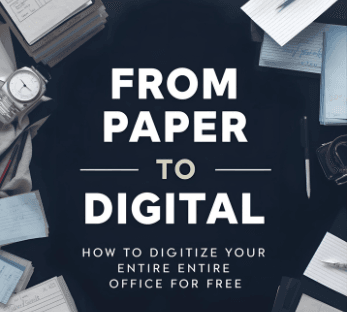
From Paper to Digital: How to Digitize Your Entire Office for Free
Learn how to convert your paper documents to digital format without spending a dime. Simple, practical steps to digitize your entire office using free tools and techniques.
Share this article
From Paper to Digital: How to Digitize Your Entire Office for Free
Got stacks of paper cluttering your office? Receipts, invoices, contracts, and documents piling up everywhere? You're not alone. Most offices are drowning in paper, and it's costing you time, space, and money.
The good news? You can digitize everything for free. No expensive scanners, no fancy software, no complicated processes. Just some free tools and a bit of organization.
Let me show you how to turn that paper chaos into a clean, searchable digital system.
What Digitization Actually Means
Digitization is simply the process of converting information from physical form (like paper) into digital format (like PDFs). It's about converting analog sources into computer-readable formats that your computer can process and store.
For your office, that means turning all those paper documents into digital files you can store, search, and share easily. Once something is digitized, you can find it in seconds instead of digging through filing cabinets.
Why Bother Digitizing?
Before we get into the how, let's talk about why this matters:
Save Space: No more filing cabinets taking up room. Everything fits on a hard drive or cloud storage.
Find Things Faster: Search for any document in seconds instead of spending 20 minutes looking through folders.
Backup Everything: Digital files can be backed up easily. Paper can burn, get lost, or get damaged.
Share Instantly: Need to send a document? Just email it or share a link. No scanning or faxing.
Work from Anywhere: Access your documents from any device, anywhere.
The Free Tools You'll Need
Here's what you actually need to digitize your office for free:
1. Your Smartphone Camera
Your phone camera is probably good enough for most documents. Modern phones take great photos, and for text documents, you don't need professional scanner quality.
2. Free Scanning Apps
Apps like Adobe Scan, Microsoft Office Lens, or Google Drive's scan feature turn your phone into a scanner. They automatically detect document edges, improve image quality, and convert photos to PDFs.
3. Free PDF Tools
Tools like PDFMagical let you merge, organize, compress, and manage your digitized documents—all for free. You'll use these to organize everything once it's digitized.
4. Cloud Storage
Google Drive, Dropbox, or OneDrive all offer free storage. Use these to store and backup your digitized documents.
Step-by-Step: How to Digitize Your Office
Step 1: Start Small
Don't try to digitize everything at once. Pick one area to start with:
- Current month's receipts
- Active project files
- Frequently accessed documents
- One filing cabinet drawer
Start small, get the process down, then expand.
Step 2: Scan Your Documents
Use your phone and a free scanning app:
- Open the scanning app
- Place document on a flat surface with good lighting
- Let the app detect the document edges
- Take the photo
- The app converts it to PDF automatically
For multiple pages, scan them all, then merge them into one PDF later.
Step 3: Organize as You Go
Don't just scan and dump everything in one folder. Create a system:
- By date: 2025/January, 2025/February, etc.
- By project: ProjectName/Documents
- By type: Receipts, Invoices, Contracts, etc.
Pick a system that makes sense for how you work.
Step 4: Name Files Consistently
Use a consistent naming system:
- "Invoice_CompanyName_2025-12-15.pdf"
- "Receipt_StoreName_2025-12-15.pdf"
- "Contract_ClientName_2025-12-15.pdf"
This makes searching way easier later.
Step 5: Merge Related Documents
If you have multiple pages for one document (like a 5-page contract), merge them into one PDF. Use PDFMagical's merge tool to combine related pages.
Step 6: Compress Large Files
Scanned documents can be large. Use PDFMagical's compress tool to reduce file size without losing quality. This saves storage space and makes files easier to share.
Step 7: Store in Cloud
Upload everything to cloud storage (Google Drive, Dropbox, etc.) so you can access it from anywhere and have automatic backups.
Tips for Better Results
Good Lighting: Scan in a well-lit area. Natural light works best, but any bright light is fine.
Flat Surface: Place documents on a flat, clean surface. A white or light-colored table works well.
Remove Staples: Take staples out before scanning. They create shadows and make documents harder to scan.
Scan in Order: If you're scanning multiple pages, scan them in the order you want them to appear.
Check Quality: After scanning, quickly check that text is readable. If it's blurry, rescan it.
Batch Process: Scan similar documents together (all receipts, all invoices, etc.) to work more efficiently.
Organizing Your Digital Files
Once everything is digitized, organization is key. Here's a simple system:
Main Folders:
- Active Projects
- Completed Projects
- Financial Documents
- Legal Documents
- Reference Materials
Subfolders:
- By year (2025, 2024, etc.)
- By client or project name
- By document type
Keep it simple. If your system is too complicated, you won't use it.
What to Do With Paper After Digitizing
Once you've digitized something and verified the digital copy is good:
-
Keep originals for important documents: Legal documents, contracts, tax records—keep the originals in a safe place.
-
Shred routine documents: Receipts, invoices older than a year, routine correspondence—shred these after digitizing.
-
Create a retention schedule: Decide how long to keep different types of documents, then stick to it.
Common Mistakes to Avoid
Scanning Everything at Once: This is overwhelming. Start small.
No Organization System: Scanning without organizing just creates digital chaos. Have a system before you start.
Poor Quality Scans: If text isn't readable, the scan is useless. Check quality as you go.
No Backup: Digital files can be lost. Always backup to cloud storage.
Inconsistent Naming: Random file names make searching impossible. Use a consistent system.
The Benefits You'll See
Once you start digitizing, you'll notice:
- Less clutter: Physical space opens up as paper disappears
- Faster searches: Find any document in seconds
- Better organization: Everything is where it should be
- Easier sharing: Send documents instantly
- Peace of mind: Everything is backed up and safe
Getting Started Today
Ready to start? Here's your action plan:
- Pick one area - Start with one drawer, one project, or one month's documents
- Download a free scanning app - Get Adobe Scan or Microsoft Office Lens
- Scan 10 documents - Just 10 to get the process down
- Organize them - Put them in folders with good names
- Upload to cloud - Store them in Google Drive or Dropbox
That's it. Start with 10 documents, see how it goes, then keep going. You don't have to do everything today. Just start.
The Bottom Line
Digitizing your office doesn't have to be expensive or complicated. With free tools and a simple system, you can convert all that paper into a clean, organized digital system.
The key is starting small, being consistent, and using the right free tools. Your phone, a free scanning app, and free PDF tools like PDFMagical are all you need.
Once you start, you'll wonder why you didn't do it sooner. Less clutter, faster searches, easier sharing—it's worth the effort.
Ready to get started? Pick one area, grab your phone, and start scanning. You've got this.
Try These Tools
Related Articles
How to Merge PDF Files Online: A Complete Guide
Learn how to combine multiple PDF documents into a single file using free online tools. Step-by-step guide with tips and best practices.
Read more
How to Compress PDF Files and Reduce File Size
Discover effective methods to compress PDF files and reduce their size without losing quality. Learn about different compression levels and when to use them.
Read more
What Is a PDF File? A Simple Guide for Everyday Users
Learn what a PDF file is, how it works, and why it is the most popular format for sharing documents securely and reliably.
Read moreComments (0)
No comments yet. Be the first to comment!
Note: Some comments are pre-loaded examples. Your comments are stored locally in your browser and won't be visible to other users.