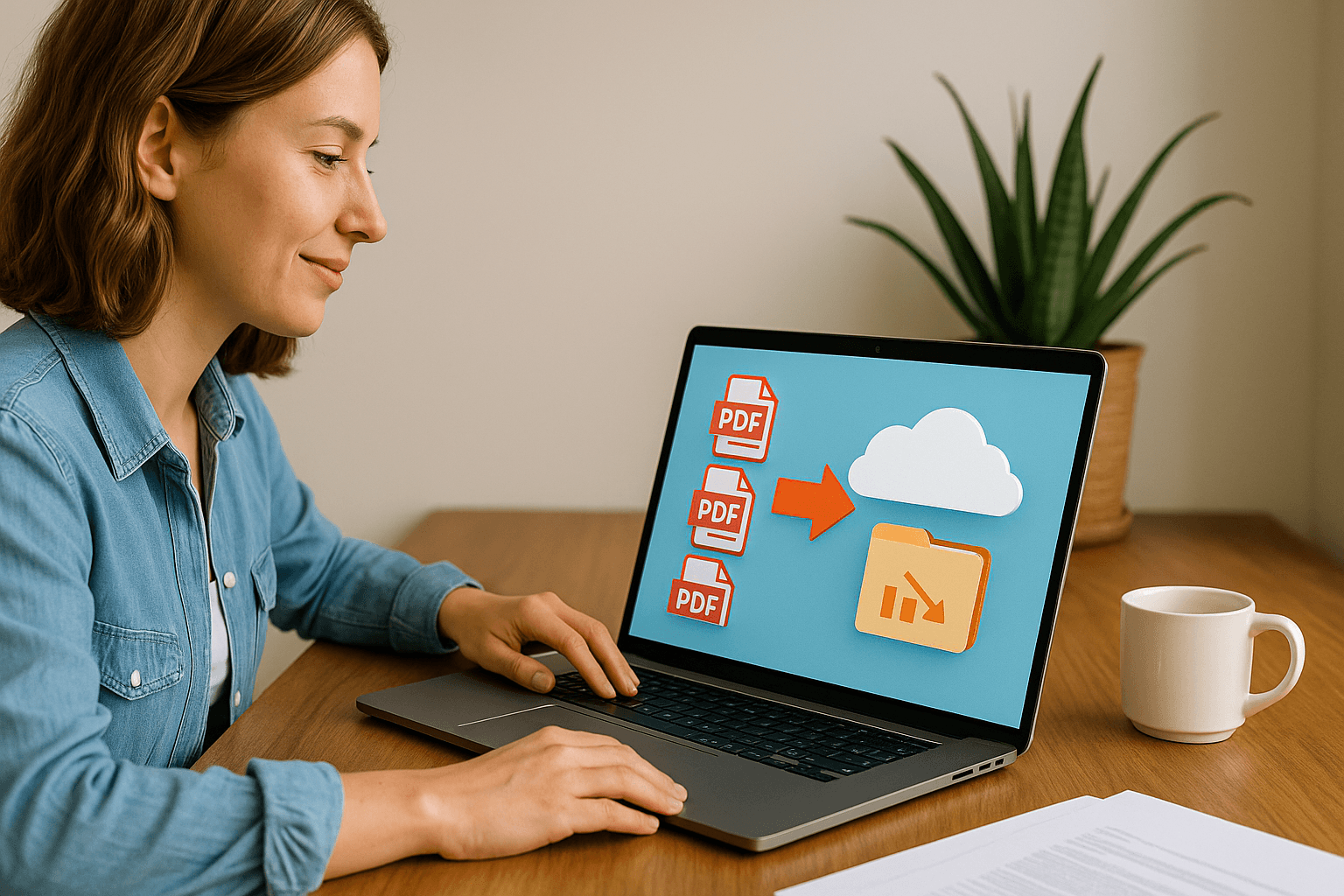
How PDF Tools Save Your Laptop Storage: A Deep Dive into Smart File Management
Discover how PDF tools help you save valuable storage space on your laptop. Learn practical tips for managing files efficiently and keeping your computer running smoothly.
Share this article
How PDF Tools Save Your Laptop Storage: A Deep Dive into Smart File Management
You know that moment when your laptop starts showing that dreaded "Storage Almost Full" warning? I've been there. Last month, I was trying to download a software update and my MacBook told me I had less than 2GB free. That's when I realized I had hundreds of PDF files scattered across my Downloads folder, Desktop, and various project folders, eating up space I didn't even know I was wasting.
After spending a weekend organizing and optimizing my PDFs, I freed up over 15GB of space. That's when it hit me – PDF tools aren't just about converting or editing documents. They're actually one of the best ways to manage your laptop storage intelligently.
Let me share what I learned about how PDF tools can transform your file management and save you from those storage headaches.
The Storage Problem We All Face
Most of us don't think about file sizes until it's too late. I used to download PDFs, save them wherever was convenient, and never look back. Before I knew it, I had:
- 50+ scanned documents from my phone (each 3-5MB)
- Multiple versions of the same report (because I kept downloading instead of organizing)
- Huge presentation PDFs with embedded images (some over 20MB each)
- Old project files I thought I'd deleted but were still hiding in subfolders
Sound familiar? The thing is, PDFs can be surprisingly large, especially when they contain images, scanned pages, or high-resolution graphics. A single scanned document can easily be 5-10MB. Multiply that by dozens or hundreds of files, and you're looking at gigabytes of wasted space.
How PDF Compression Actually Works
This is where PDF compression tools become your best friend. I used to think compression meant losing quality, but that's not necessarily true. Modern PDF compression is pretty smart.
When you compress a PDF, the tool analyzes what's inside:
- Text – This compresses really well because it's just characters. You can shrink text-heavy PDFs by 70-80% without any noticeable difference.
- Images – The tool optimizes images by reducing resolution where appropriate, using better compression algorithms, or removing duplicate images.
- Metadata – Cleans up hidden data, comments, and revision history that you probably don't need.
- Fonts – Removes unused fonts or embeds them more efficiently.
I compressed a 15MB presentation PDF down to 3MB recently. Visually, it looked identical. The text was still crisp, images were still clear, but the file was 80% smaller. That's 12MB back in my storage.
Merging Files: The Hidden Storage Saver
Here's something I didn't realize until recently – having multiple small PDFs actually uses more space than one merged file. Here's why:
When you have 10 separate PDF files, each one has:
- File system overhead (metadata, directory entries)
- Individual headers and structure
- Potentially duplicate fonts or resources
But when you merge them into one PDF:
- One file structure instead of ten
- Shared resources (fonts, images) are stored once
- Less file system overhead
I had a project with 25 separate PDF reports, each around 2MB. Total: 50MB. After merging them into one organized document? 38MB. That's 12MB saved just by combining files. Plus, it's way easier to find and manage one file instead of 25.
The Organize and Delete Strategy
This might seem obvious, but most people (including me) are terrible at actually doing it. PDF organization tools help you:
Remove Unnecessary Pages
I had a 50-page manual where I only needed pages 5-12. Instead of keeping the entire 8MB file, I split it and kept just what I needed. Saved 6MB right there.
Delete Duplicate Content
Found three versions of the same contract in different folders. They were 99% identical, just with minor date changes. I kept the latest one and deleted the others. Another 4MB freed up.
Extract What You Need
Instead of keeping a 20MB report when you only need the summary page, extract just that page. You go from 20MB to 500KB. That's a 97% reduction.
Real Numbers: What I Actually Saved
Let me break down my actual storage recovery:
Before optimization:
- Scanned documents folder: 2.3GB (mostly 3-5MB files)
- Project PDFs: 4.1GB (many with embedded high-res images)
- Downloads folder: 1.8GB (duplicates and old versions)
- Desktop clutter: 800MB (random PDFs I forgot about)
After using PDF tools:
- Compressed scanned docs: 680MB (saved 1.6GB)
- Merged and optimized projects: 2.2GB (saved 1.9GB)
- Cleaned downloads: 450MB (saved 1.35GB)
- Organized desktop: 120MB (saved 680MB)
Total saved: 5.5GB – and that's just from one cleanup session. I've been maintaining this system for a few months now, and I've probably saved another 3-4GB by staying organized.
The Smart Workflow I Use Now
I've developed a simple system that prevents storage bloat:
1. Compress Immediately
When I download or create a PDF, I check its size. If it's over 2MB, I compress it right away. Takes 30 seconds and saves space immediately.
2. Merge Related Files
Instead of keeping 10 separate invoices from the same month, I merge them into one "January 2025 Invoices.pdf". Easier to find, smaller total size.
3. Monthly Cleanup
Every month, I go through my PDFs and:
- Delete anything I don't need
- Compress anything that's gotten large
- Merge related documents
- Organize into proper folders
4. Use Online Tools
I use online PDF tools (like PDFMagical) so I don't need to install heavy desktop software that takes up even more space. Plus, the processing happens in the browser, so it doesn't clutter my laptop.
Beyond Storage: The Other Benefits
Saving storage space is great, but there are other perks:
Faster File Transfers
Smaller files email faster, upload to cloud storage quicker, and share more easily. I used to struggle sending large PDFs via email. Now they're compressed and send in seconds.
Better Organization
When files are organized and merged, you actually know where things are. No more searching through 50 files to find that one document.
Improved Performance
Your laptop runs better with more free space. I noticed my computer was faster after freeing up that space – less disk thrashing, quicker file searches, smoother overall performance.
Easier Backups
Smaller files mean faster backups. My cloud backup used to take hours. Now it's much quicker because I'm backing up optimized files.
Common Mistakes That Waste Space
I made all of these mistakes, so learn from my errors:
Keeping Multiple Versions
I used to save "document_v1.pdf", "document_v2.pdf", "document_final.pdf", and "document_final_really.pdf". Now I just keep the final version and delete the rest.
Not Compressing Scanned Documents
Scanned PDFs are almost always way bigger than they need to be. A 300 DPI scan of a text document can be 5MB, but compressed to 150 DPI (still perfectly readable), it's 800KB.
Storing Everything Locally
Some PDFs I only need occasionally. Those go to cloud storage, not my laptop. I keep local copies of things I access frequently.
Ignoring Embedded Images
PDFs with lots of images can be huge. I extract images I don't need or compress the PDF to optimize those images.
Tools That Make This Easy
You don't need to be a tech expert to do this. Modern PDF tools make it simple:
Compression Tools
Upload, compress, download. Takes maybe a minute. I use these for any PDF over 2MB.
Merge Tools
Select multiple files, drag to merge, done. I merge related documents weekly.
Split Tools
Extract just the pages you need. Perfect for when you only want part of a large document.
Organize Tools
Some tools let you reorder, delete, and organize pages all in one place. Super convenient.
The best part? Many of these tools are free and work right in your browser. No installation, no taking up more space on your laptop.
A Real Example: My Last Cleanup
Last weekend, I did another cleanup. Here's what happened:
I had a "Tax Documents 2024" folder with 47 PDF files totaling 89MB. Most were scanned receipts and invoices. I:
- Merged all receipts into "2024_Receipts.pdf" (was 47 files, now 1)
- Compressed the merged file (89MB down to 12MB)
- Organized invoices separately (merged and compressed)
- Deleted duplicate scans I'd accidentally saved twice
Result: 89MB became 18MB. Saved 71MB from one folder. And now it's way easier to find things – one receipts file instead of 30+ individual files.
The Long-Term Impact
This isn't just a one-time thing. By developing good PDF management habits:
- You prevent storage bloat from building up
- Your laptop stays faster longer
- You can actually find your files
- Backups are quicker and cheaper
- You're more productive (less time searching for files)
I've been doing this for about 6 months now, and my storage situation is completely different. I went from constantly worrying about space to having plenty of room. My laptop feels faster, my files are organized, and I'm not constantly getting those annoying "storage full" warnings.
Getting Started: Your First Cleanup
If you want to try this, here's a simple starting point:
- Find your biggest PDFs – Use your file manager to sort by size, find PDFs over 5MB
- Compress them – Use a free online tool to compress each one
- Look for duplicates – Search for files with similar names, delete extras
- Merge related files – Group similar documents and merge them
- Delete what you don't need – Be honest, do you really need that PDF from 2019?
Start small. Pick one folder, spend 15 minutes on it, see the results. You'll probably be surprised how much space you can free up.
The Bottom Line
PDF tools aren't just about editing or converting documents. They're actually powerful storage management tools that most people don't realize they need. By compressing, merging, organizing, and cleaning up your PDFs, you can easily free up gigabytes of space without losing anything important.
I went from constantly worrying about storage to having a system that keeps my laptop clean and organized. The best part? It doesn't take much time. A few minutes here and there, and you'll keep your storage under control.
Try it yourself. Pick a folder full of PDFs, spend 20 minutes optimizing them, and see how much space you get back. I bet you'll be surprised.
Try These Tools
Related Articles
How to Merge PDF Files Online: A Complete Guide
Learn how to combine multiple PDF documents into a single file using free online tools. Step-by-step guide with tips and best practices.
Read more
How to Compress PDF Files and Reduce File Size
Discover effective methods to compress PDF files and reduce their size without losing quality. Learn about different compression levels and when to use them.
Read more
PDF Split and Merge: How Desktop Tools Help You Manage PDF Pages
Understand how desktop PDF split and merge tools work, when to use them instead of online services, and what features to look for.
Read moreComments (0)
No comments yet. Be the first to comment!
Note: Some comments are pre-loaded examples. Your comments are stored locally in your browser and won't be visible to other users.