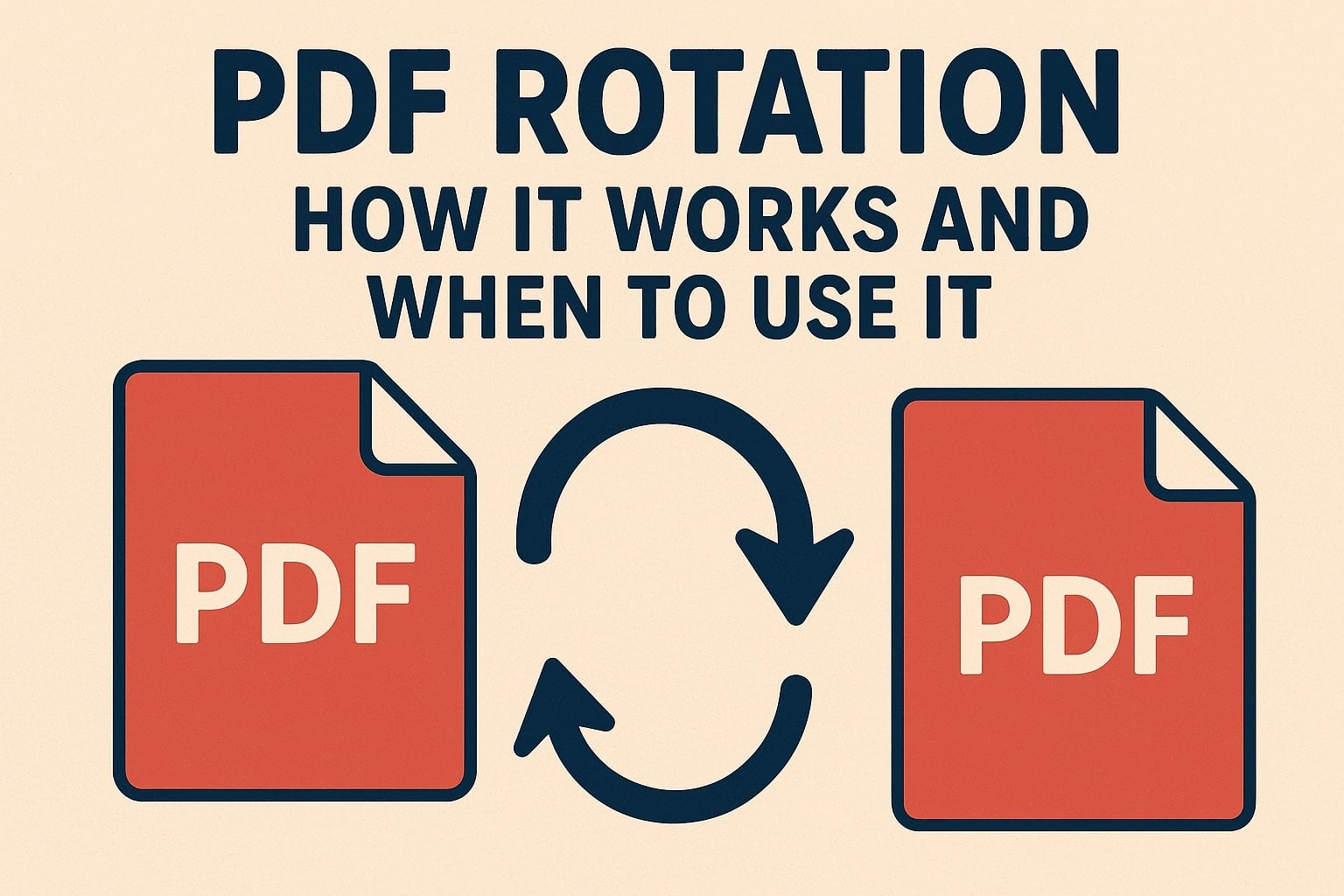
PDF Rotation: How It Works and When to Use It
Learn everything about PDF rotation. Discover how PDF rotation works, when you need it, and how to rotate PDF pages using online tools.
Share this article
PDF Rotation: How It Works and When to Use It
Have you ever opened a PDF and found pages that are sideways or upside down? This is a common problem, especially with scanned documents. PDF rotation tools let you fix these orientation issues quickly and easily. This guide explains how PDF rotation works and when you need it.
What is PDF Rotation?
PDF rotation is the process of changing the orientation of pages in a PDF document. You can rotate pages 90 degrees (quarter turn), 180 degrees (half turn), or 270 degrees (three-quarter turn) clockwise or counterclockwise.
Common Rotation Angles
- 90° Clockwise – Rotates page to the right
- 90° Counterclockwise – Rotates page to the left
- 180° – Flips page upside down
- 270° – Three-quarter rotation (same as 90° the other way)
Why Do PDFs Need Rotation?
PDFs often have orientation problems for several reasons:
1. Scanned Documents
When you scan documents, pages might be placed in the scanner incorrectly, resulting in sideways or upside-down pages in the PDF.
2. Mobile Photos
Photos taken with phones or tablets might be captured in portrait mode when they should be landscape, or vice versa.
3. Document Creation Errors
Sometimes documents are created with pages in the wrong orientation, especially when combining files from different sources.
4. Printer Settings
PDFs created from printers or copiers might have pages rotated incorrectly based on how the original document was fed into the machine.
How PDF Rotation Works
Understanding how PDF rotation works helps you use rotation tools more effectively.
Technical Process
PDF rotation works by modifying the page's rotation matrix in the PDF file structure. Here's what happens:
- Page Analysis – The tool reads the PDF and identifies each page's current rotation
- Rotation Calculation – Calculates the new rotation angle (current rotation + desired rotation)
- Matrix Transformation – Applies a rotation matrix to transform the page orientation
- Content Preservation – All content (text, images, graphics) rotates together
- File Update – Saves the PDF with updated rotation information
Rotation Matrix
PDFs use a coordinate system where rotation is applied through mathematical transformations. The rotation matrix ensures that:
- Text remains readable
- Images maintain quality
- Layouts are preserved
- All elements rotate together
Types of PDF Rotation
1. Single Page Rotation
Rotate individual pages that are incorrectly oriented while leaving other pages unchanged.
Use when:
- Only specific pages need rotation
- Different pages have different orientation issues
- You want precise control over each page
2. All Pages Rotation
Rotate every page in the document by the same amount.
Use when:
- All pages have the same orientation problem
- You scanned a document with all pages the same way
- You want to quickly fix an entire document
3. Selected Pages Rotation
Rotate specific page ranges or selected pages.
Use when:
- Multiple pages need rotation but not all
- You want to rotate pages 1-5 but leave 6-10 unchanged
- You need batch rotation for specific sections
Common Use Cases
1. Fixing Scanned Documents
The most common use case. When scanning documents, pages often end up rotated incorrectly. PDF rotation tools let you fix them quickly.
Example: You scanned a 20-page report, and pages 3, 7, and 12 are sideways. Rotate just those pages to fix them.
2. Correcting Mobile Photos
Photos taken with phones and converted to PDF might need rotation to match the correct orientation.
Example: You took photos of receipts in portrait mode, but they should be landscape for your expense report.
3. Preparing Documents for Printing
Rotate pages to match printer requirements or paper orientation.
Example: Your PDF has landscape pages, but your printer is set for portrait. Rotate pages to match.
4. Standardizing Document Orientation
Ensure all pages in a document have consistent orientation.
Example: You're merging multiple PDFs, and some have portrait pages while others have landscape. Rotate to make them consistent.
5. Fixing Presentation Slides
PowerPoint presentations converted to PDF might have slides in the wrong orientation.
Example: Some slides are rotated 90 degrees. Rotate them back to the correct orientation.
How Online PDF Rotation Tools Work
Modern online PDF rotation tools, like PDFMagical, make rotating PDFs simple:
The Process
- Upload PDF – Drag and drop or select your PDF file
- Preview Pages – See all pages and identify which need rotation
- Select Rotation – Choose pages and rotation direction
- Apply Rotation – Tool processes the rotation
- Download – Get your corrected PDF
Features of Good Rotation Tools
- Page Preview – See pages before and after rotation
- Individual Control – Rotate pages one at a time
- Batch Rotation – Rotate multiple pages at once
- Multiple Angles – Support for 90°, 180°, 270° rotations
- Instant Results – Quick processing and download
- Quality Preservation – No loss of quality during rotation
Desktop vs. Online Rotation Tools
Desktop Tools (Like PDFsam)
Desktop applications like PDF Split and Merge (PDFsam) offer:
- Offline Processing – Works without internet
- Advanced Features – More rotation options
- Large File Support – Handle very large PDFs
- Batch Processing – Process multiple files
Best for: Power users, large files, offline work
Online Tools (Like PDFMagical)
Online tools offer:
- No Installation – Use in any browser
- Quick Access – Start immediately
- Cross-Platform – Works on any device
- Simple Interface – Easy to use
Best for: Quick fixes, occasional use, convenience
Best Practices for PDF Rotation
1. Preview Before Rotating
Always preview pages before applying rotation to ensure you're rotating the right pages in the correct direction.
2. Rotate in Steps
If you're unsure, rotate in 90-degree increments and check the result. You can always rotate again.
3. Check All Pages
After rotating, review the entire document to ensure all pages are correctly oriented.
4. Save Originals
Keep a copy of the original PDF before rotating, in case you need to start over.
5. Use Consistent Orientation
For multi-page documents, ensure all pages have the same orientation unless there's a specific reason for variation.
6. Verify Quality
After rotation, check that text is still readable and images maintain quality.
Rotation Angles Explained
90° Clockwise (Right)
Rotates the page 90 degrees to the right. If a portrait page is sideways to the right, this fixes it.
When to use: Page is rotated left, needs to go right
90° Counterclockwise (Left)
Rotates the page 90 degrees to the left. If a portrait page is sideways to the left, this fixes it.
When to use: Page is rotated right, needs to go left
180° (Upside Down)
Flips the page completely upside down. Useful when pages are scanned or created upside down.
When to use: Page is completely inverted
270° (Three-Quarter Turn)
Same as 90° in the opposite direction. Sometimes needed to reach the correct orientation.
When to use: Multiple rotations needed, or specific orientation requirement
Troubleshooting Rotation Issues
Page Still Wrong After Rotation
Solution: You might need to rotate again. Try a different angle or rotate multiple times.
Text Becomes Unreadable
Solution: This shouldn't happen with proper rotation tools. Try a different tool or check if the PDF is corrupted.
Rotation Not Saving
Solution: Ensure you download the rotated PDF. Some tools require downloading to save changes.
Only Some Pages Rotate
Solution: Check if you selected "rotate all" or "rotate selected." Make sure you've selected the correct pages.
File Size Increases
Solution: This is normal. Rotation adds metadata to the PDF. Use a compression tool if file size is a concern.
Advanced Rotation Features
Some tools offer advanced rotation features:
Rotation by Bookmark
Rotate pages based on document bookmarks or sections.
Rotation by Size
Rotate pages based on their dimensions (portrait vs. landscape).
Batch Rotation
Rotate multiple PDF files at once, applying the same rotation to all.
Rotation History
Some tools remember rotation settings for similar documents.
PDF Rotation in PDFMagical
PDFMagical makes PDF rotation simple:
- Easy Upload – Drag and drop your PDF
- Page Preview – See all pages clearly
- Individual Control – Rotate pages one at a time
- Batch Rotation – Rotate all pages at once
- Multiple Angles – 90°, 180°, 270° support
- Instant Processing – Quick rotation and download
- Quality Preserved – No quality loss
- Free to Use – No cost, no watermarks
When Not to Use Rotation
Rotation isn't always the solution:
- Crooked Content – If content is crooked within the page, you need editing, not rotation
- Wrong Page Size – If pages are the wrong size, rotation won't help
- Content Issues – If text or images are missing, rotation won't fix it
- Format Problems – If the PDF format is corrupted, rotation might not work
Conclusion
PDF rotation is a simple but essential tool for fixing orientation problems in PDF documents. Whether you're fixing scanned documents, correcting mobile photos, or preparing files for printing, rotation tools make it easy to get your PDFs oriented correctly.
Key Takeaways:
- PDF rotation changes page orientation without affecting content quality
- You can rotate individual pages or entire documents
- Common angles are 90°, 180°, and 270°
- Online tools like PDFMagical make rotation quick and easy
- Always preview before rotating to ensure correct results
With the right tool and understanding of how rotation works, you can quickly fix any PDF orientation issues and ensure your documents look professional and are easy to read.
Try These Tools
Related Articles
How to Merge PDF Files Online: A Complete Guide
Learn how to combine multiple PDF documents into a single file using free online tools. Step-by-step guide with tips and best practices.
Read more
How to Compress PDF Files and Reduce File Size
Discover effective methods to compress PDF files and reduce their size without losing quality. Learn about different compression levels and when to use them.
Read more
What Is a PDF File? A Simple Guide for Everyday Users
Learn what a PDF file is, how it works, and why it is the most popular format for sharing documents securely and reliably.
Read moreComments (0)
No comments yet. Be the first to comment!
Note: Some comments are pre-loaded examples. Your comments are stored locally in your browser and won't be visible to other users.