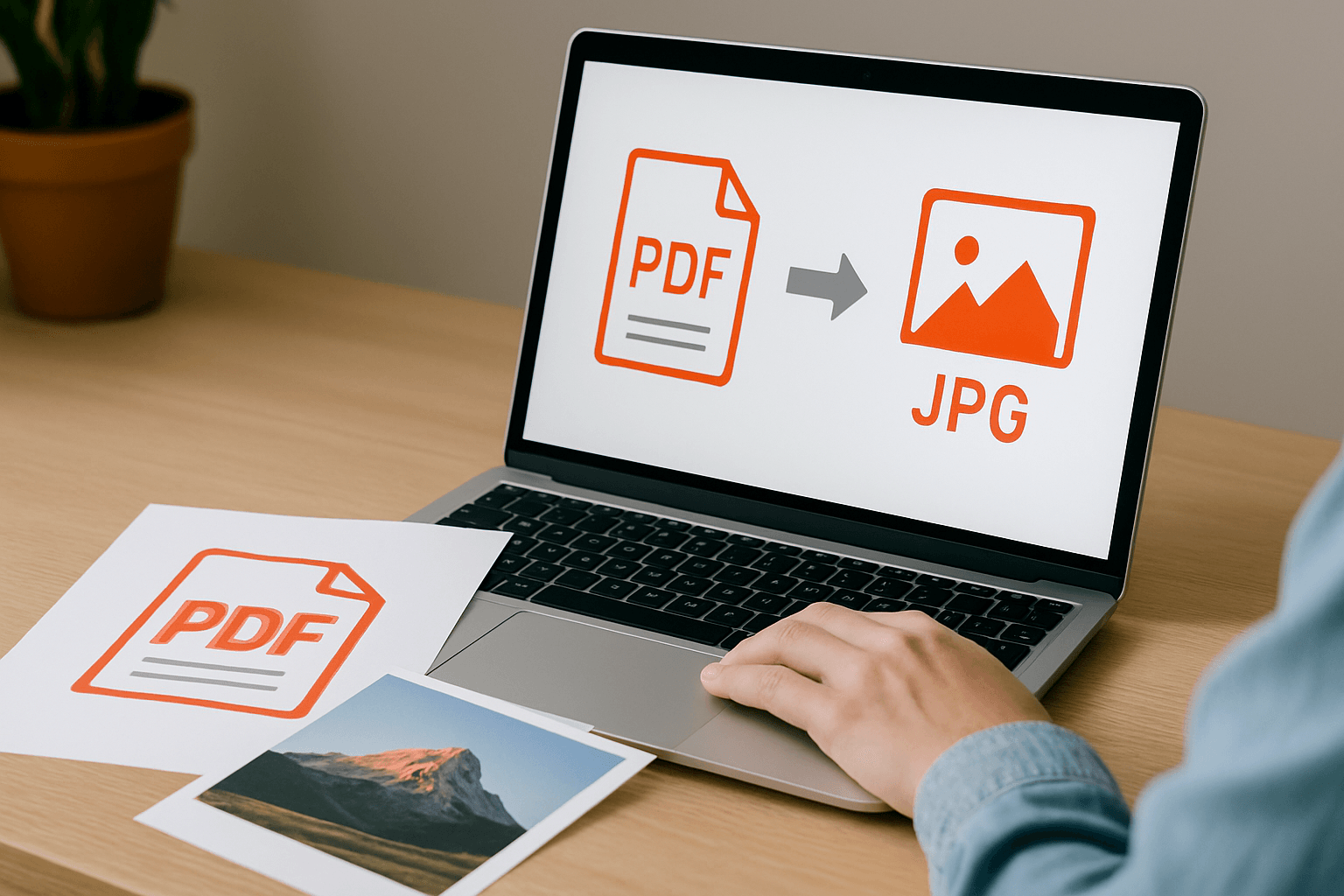
PDF to JPG Conversion: Your Complete Guide
Learn how to convert PDF pages to JPG images. Discover why you might need this conversion, how it works, and best practices for getting high-quality results.
Share this article
PDF to JPG Conversion: Your Complete Guide
PDFs are great for documents, but sometimes you need images instead. Whether you're creating social media posts, adding pages to presentations, or extracting images from documents, converting PDF to JPG can be incredibly useful. This guide will help you understand everything about PDF to JPG conversion and how to get the best results.
Why Convert PDF to JPG?
PDFs and JPGs serve different purposes. Understanding when to use each format helps you make the right choice.
When You Need JPG Images
- Social Media – Share PDF pages on Instagram, Facebook, or Twitter
- Presentations – Insert PDF pages into PowerPoint or Google Slides
- Websites – Use PDF pages as images on websites or blogs
- Image Editing – Edit PDF content using image editing software
- Email Attachments – Send individual pages as images
- Print Design – Use PDF pages in design software that works better with images
Key Differences
PDF:
- Multi-page document format
- Preserves text and vector graphics
- Can contain interactive elements
- Larger file sizes typically
- Requires PDF reader software
JPG:
- Single image format
- Universal compatibility
- Smaller file sizes
- Works everywhere (browsers, apps, social media)
- Easy to edit with image software
How PDF to JPG Conversion Works
Converting PDF to JPG involves rendering each PDF page as an image. Here's what happens:
The Conversion Process
- PDF Reading – The converter reads the PDF file structure
- Page Rendering – Each page is rendered as an image at a specific resolution
- Image Creation – The rendered page is converted to JPG format
- Quality Optimization – Images are compressed to balance quality and file size
- File Output – JPG images are created for each page
Quality Settings
Most converters offer quality options:
- High Quality – 300 DPI or higher, best for printing
- Medium Quality – 150-200 DPI, good for screen viewing
- Low Quality – 72-100 DPI, smallest file size, web use
Common Use Cases
1. Social Media Sharing
Convert PDF pages to JPG to share on social media platforms. Most platforms prefer image formats over PDFs.
2. Presentation Slides
Extract pages from PDF presentations and use them as images in PowerPoint, Google Slides, or other presentation tools.
3. Website Content
Use PDF pages as images on websites. JPG images load faster and are more compatible with web browsers.
4. Image Editing
Convert PDF pages to JPG to edit them in Photoshop, GIMP, or other image editing software.
5. Email Attachments
Send individual PDF pages as JPG images, which are more universally accessible than PDFs.
6. Print Design
Use PDF pages in design software like InDesign or Canva that work better with image formats.
Choosing the Right Converter
Look for these features when choosing a PDF to JPG converter:
Essential Features
- Free to Use – No watermarks or hidden costs
- High Quality Output – Maintains image quality during conversion
- Batch Processing – Convert multiple pages at once
- Privacy Protection – Files processed securely and deleted after conversion
- No Registration – Quick access without creating accounts
- Fast Processing – Quick conversion times
Advanced Features
- Quality Options – Choose DPI/resolution settings
- Page Selection – Convert specific pages instead of all pages
- Format Options – Convert to JPG, PNG, or other image formats
- Custom Dimensions – Set specific image dimensions
- Compression Control – Adjust file size vs quality balance
Best Practices for PDF to JPG Conversion
1. Choose the Right Quality
- For Printing: Use 300 DPI or higher
- For Screen Viewing: 150-200 DPI is sufficient
- For Web Use: 72-100 DPI keeps file sizes small
2. Select Specific Pages
If you only need certain pages, select them instead of converting the entire PDF. This saves time and storage space.
3. Consider File Size
Higher quality means larger files. Balance quality with file size based on your needs.
4. Check the Output
Always review the converted images to ensure:
- Text is readable
- Colors are accurate
- Images are clear
- No pages are missing
5. Organize Your Files
Name your JPG files clearly (e.g., "document-page-1.jpg") to keep them organized.
6. Preserve Originals
Keep your original PDF files. You can always convert again if needed.
Online vs. Desktop Converters
Online Converters
Advantages:
- No software installation
- Accessible from any device
- Usually free
- Regular updates
- Cross-platform compatibility
Considerations:
- Requires internet connection
- File size limitations may apply
- Privacy concerns with sensitive documents
Desktop Converters
Advantages:
- Works offline
- No file size limits
- Complete privacy
- Often faster for large batches
Considerations:
- Requires software installation
- May have licensing costs
- Platform-specific
For most users, online converters offer the best balance of convenience and features.
Troubleshooting Common Issues
Poor Image Quality
Solutions:
- Use higher quality/resolution settings
- Check if the original PDF has low resolution
- Try a different converter
- Increase DPI settings
Large File Sizes
Solutions:
- Use lower quality settings
- Compress images after conversion
- Convert only needed pages
- Use image optimization tools
Missing Pages
Solutions:
- Verify the PDF isn't corrupted
- Check page selection settings
- Try converting again
- Use a different converter
Text Not Readable
Solutions:
- Increase resolution/DPI settings
- Check if the original PDF has text (not just images)
- Use OCR if text is embedded as images
- Try higher quality settings
Conversion Errors
Solutions:
- Check if PDF is password-protected
- Verify PDF isn't corrupted
- Try a different converter
- Check internet connection (for online tools)
Quality Settings Explained
DPI (Dots Per Inch)
DPI determines image resolution:
- 72 DPI – Web quality, small files
- 150 DPI – Good screen quality
- 200 DPI – High screen quality
- 300 DPI – Print quality
- 600 DPI – High print quality (large files)
File Size vs. Quality
Higher quality = larger files. Choose based on your needs:
- Social Media: 72-150 DPI is usually enough
- Presentations: 150-200 DPI works well
- Printing: 300 DPI or higher recommended
Tips for Best Results
- Start with Good PDFs – High-quality PDFs produce better JPG images
- Use Appropriate Quality – Don't use 300 DPI for web use (wastes space)
- Convert Only What You Need – Select specific pages to save time
- Check Before Using – Always preview converted images
- Keep Originals – Save your PDF files for future use
- Organize Files – Use clear naming conventions
Conclusion
Converting PDF to JPG is a simple process that opens up many possibilities. Whether you need images for social media, presentations, or editing, PDF to JPG converters make it easy.
Remember:
- Choose quality settings based on your needs
- Online converters are convenient for most users
- Always check the output quality
- Keep your original PDF files
With the right tool and settings, you can convert PDF pages to high-quality JPG images quickly and easily. This flexibility helps you use your PDF content in more ways than ever before.
Try These Tools
Related Articles
How to Merge PDF Files Online: A Complete Guide
Learn how to combine multiple PDF documents into a single file using free online tools. Step-by-step guide with tips and best practices.
Read more
How to Compress PDF Files and Reduce File Size
Discover effective methods to compress PDF files and reduce their size without losing quality. Learn about different compression levels and when to use them.
Read more
What Is a PDF File? A Simple Guide for Everyday Users
Learn what a PDF file is, how it works, and why it is the most popular format for sharing documents securely and reliably.
Read moreComments (0)
No comments yet. Be the first to comment!
Note: Some comments are pre-loaded examples. Your comments are stored locally in your browser and won't be visible to other users.