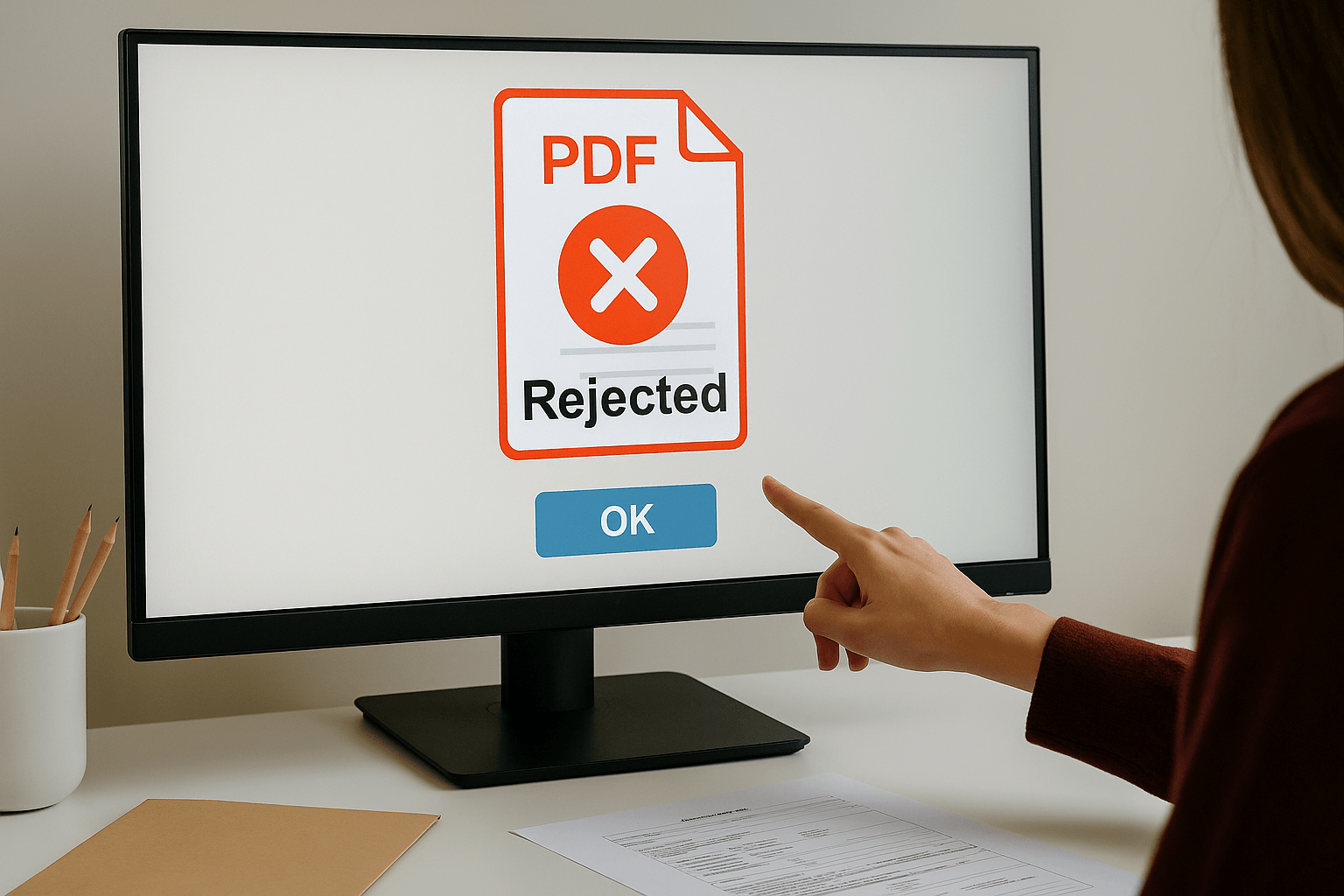
Why Your PDF Gets Rejected in Online Forms (And How to Fix It Effortlessly)
Discover why PDF files get rejected when uploading to online forms and learn simple, effective solutions to fix these issues. Complete guide with step-by-step fixes.
Share this article
Why Your PDF Gets Rejected in Online Forms (And How to Fix It Effortlessly)
Ever tried uploading a PDF to an online form—a job application, government document, or school assignment—only to get an error message? You're definitely not alone. This happens to millions of people daily, and the good news is, the fixes are usually pretty simple.
Let's break down why PDFs get rejected and how you can fix these issues quickly and easily.
Why PDFs Get Rejected: The Top 5 Reasons
1. File Size is Too Large
The Problem: Most online forms limit file size to 2-10MB. If your PDF is bigger, it gets rejected immediately.
Why It Happens: Large PDFs usually contain high-resolution images, multiple scanned pages, or uncompressed content.
Quick Fix: Compress your PDF using an online tool. This typically reduces file size by 50-80% while keeping everything readable.
2. Password Protection
The Problem: Many forms can't process password-protected PDFs because they need to read the file content.
Quick Fix: Unlock your PDF using an online unlock tool or Adobe Acrobat. Just remember—only unlock documents you're comfortable making accessible.
3. Special Characters in Filename
The Problem: Filenames with special characters like /, , :, *, ?, ", <, >, or | can cause upload failures.
Quick Fix: Rename your file using only letters, numbers, hyphens, and underscores. For example, change "My Document (Final).pdf" to "My-Document-Final.pdf".
4. Corrupted or Invalid PDF
The Problem: Sometimes a file that looks like a PDF isn't actually valid. This happens when files are renamed incorrectly or get corrupted.
Quick Fix: Re-save your PDF by opening it and using "Print to PDF" or use an online converter to create a fresh, standard PDF file.
5. Wrong PDF Version or Complex Structure
The Problem: Some forms only accept specific PDF versions or reject files with complex structures (layers, annotations, interactive elements).
Quick Fix: Convert to a standard PDF format (PDF 1.4 or later) or simplify the structure by flattening the PDF.
How to Fix PDF Issues: Simple Step-by-Step Solutions
Fix #1: Compress Your PDF (Most Common Solution)
If your file is too large, compression is usually the quickest fix:
- Use an online PDF compression tool
- Upload your PDF
- Choose "Medium" compression level
- Download the compressed version
Pro Tip: Always keep a backup of your original file before compressing.
Fix #2: Remove Password Protection
If your PDF is password-protected:
- Use an online PDF unlock tool
- Upload your protected PDF
- Enter the password
- Download the unlocked version
Or use Adobe Acrobat: File > Properties > Security > Change to "No Security"
Fix #3: Fix the Filename
Simple but effective:
- Remove all special characters
- Replace spaces with hyphens
- Keep it under 50 characters
- Use lowercase when possible
Example: "Resume 2025 (Final).pdf" → "resume-2025-final.pdf"
Fix #4: Convert to Standard Format
If your PDF won't open or seems corrupted:
- Open the PDF in any PDF viewer
- Go to File > Print
- Choose "Save as PDF" or "Microsoft Print to PDF"
- This creates a fresh, standard PDF
Fix #5: Simplify Complex PDFs
For PDFs with multiple pages or interactive elements:
- Use a PDF splitter to extract just the page you need
- Or flatten the PDF to remove layers and annotations
- This makes it more compatible with online forms
Quick Checklist Before Uploading
Before submitting your PDF, make sure:
- [ ] File size is under the form's limit (check by right-clicking > Properties)
- [ ] PDF opens properly in a standard viewer
- [ ] No password protection
- [ ] Filename uses only letters, numbers, hyphens, and underscores
- [ ] All text is readable and properly formatted
If you can check all these, your PDF should upload successfully!
Real-World Examples
Example 1: Job Application
- Problem: 8MB resume rejected from form with 5MB limit
- Solution: Compress PDF to 3-4MB, re-upload
Example 2: Government Form
- Problem: Password-protected tax document won't upload
- Solution: Unlock PDF, verify it opens without password, submit
Example 3: School Assignment
- Problem: Multi-page paper rejected
- Solution: Check if form accepts multiple pages, or split into separate files if needed
Prevention Tips: Create Form-Ready PDFs
When creating PDFs from documents:
- Use standard software (Word, Google Docs, Adobe Acrobat)
- Set quality to "Standard" for text documents
- Keep it simple—avoid unnecessary graphics
When scanning documents:
- Use 300 DPI resolution (not higher)
- Save as grayscale for text documents
- Compress after scanning if file size is large
Quick Reference Guide
| Problem | Solution | Tool | |---------|----------|------| | File too large | Compress PDF | PDF Compressor | | Password protected | Unlock PDF | PDF Unlock Tool | | Won't open | Re-save/Convert | PDF Converter | | Special characters in name | Rename file | File Explorer | | Multiple pages (form needs one) | Split PDF | PDF Splitter |
Bottom Line
Most PDF rejection issues have simple solutions. Start with the easiest fixes:
- Compress if file is too large
- Unlock if password-protected
- Fix the filename
- Convert to standard format if needed
With these quick fixes, you can resolve most PDF upload problems in just a few minutes. The key is understanding what the form needs and making sure your PDF matches those requirements.
Ready to fix your PDF? Use our free PDF tools to compress, unlock, convert, and optimize your documents for successful form submissions.
Try These Tools
Related Articles
How to Merge PDF Files Online: A Complete Guide
Learn how to combine multiple PDF documents into a single file using free online tools. Step-by-step guide with tips and best practices.
Read more
How to Compress PDF Files and Reduce File Size
Discover effective methods to compress PDF files and reduce their size without losing quality. Learn about different compression levels and when to use them.
Read more
PDF Split and Merge: How Desktop Tools Help You Manage PDF Pages
Understand how desktop PDF split and merge tools work, when to use them instead of online services, and what features to look for.
Read moreComments (0)
No comments yet. Be the first to comment!
Note: Some comments are pre-loaded examples. Your comments are stored locally in your browser and won't be visible to other users.